
Open your workspace
Sign in with the account supplied by your administrator. New accounts are currently created by an admin during the private pilot.
Create through conversation: images, videos, music or talking avatars. Add references, choose supported settings, review credits and continue from results in the same saved project. Industry templates and reusable prompts are available after sign-in.
The workspace has navigation and projects on the left, chat in the centre and Generated results on the right. Drag the dividers to resize the panels. Start with an idea in everyday language.
Sign in with the account supplied by your administrator. New accounts are currently created by an admin during the private pilot.
Choose Image, Video or Music beside the composer, or select Avatar creation under Creative task. Choose a model. Open Options for supported ratios and resolutions; use the duration selector for video or music. Avatar duration comes from the speech recording. Available controls change with the model.
Describe your goal, audience, subject and visual style. Use the microphone if you prefer to speak. The assistant may ask for missing details.
Open the + menu to upload images, documents, video or audio. Choose each image’s role from its thumbnail menu: Product, Character, Scene, Environment or Style. For an avatar, attach one portrait and select uploaded speech in Options. Each model has its own reference limits.
Check the captured brief, prompt and credit estimate. Once it is ready, click Generate or type Generate now or Generate a video based on this brief. The chat checks access, credits and the available generation budget, then queues one result or explains what is blocking it. Admins can generate during the pilot; other users can prepare and save briefs until generation is enabled.
Keep chatting to create another version or new content. On a completed image, choose Make video to bring it into the same chat as a reference, or Use in chat to create another image. Describe the motion or change, choose a model and duration, review the credit cost, then generate. Results appear on the right and in Assets. The project saves the conversation, draft, settings and references; open it from the sidebar to resume the chat.
Name the subject and action, setting, composition or camera movement, light and mood, then say what should stay faithful to your reference. For a video, describe distinct shots and transitions.
Paste a public HTTPS website link: “Research https://example.com and suggest three ad angles.” The agent reads up to two linked pages and shows source links. Then ask it to turn the findings into a poster or video brief in the same saved chat.
For research without a link, the agent can search the web. Check sources and approve factual claims before publishing. Login-protected, paywalled and pages requiring JavaScript may not be readable; paste text or upload a document instead.
Research has a daily allowance of 20 requests per user, or 50 for administrators, and also counts toward the normal chat allowance. Attempts count even if a page cannot be read. Media generation still requires review and credits.
Upload up to six images with the + control, label each as a character, product, scene, environment or style, then choose a reference-capable video model.
Grok Imagine References offers 480p and 720p with native audio. H3 Max References offers 480P, 768P and 1080P; references are fitted into square images for predictable input costs. Both support 5 to 15 seconds. Review the credit estimate before generating.
Vidu Q1 References creates a fixed 5-second clip. Wan 3.0 and Seedance support multiple subject references too. Seedance 2.5 is a premium option. Describe which details must stay consistent; results vary.
H3 Turbo uses two images as start and end frames. For several independent subjects or styles, select H3 Max References or another model marked with six references. Changing the model changes the available duration, ratio and resolution.
Start with the prominent Creative task selector above the studio chat. TikTok product story, Cinematic commercial, Social product poster and UGC product video provide editable starters and task-specific starting settings. Choose Quick tour for a guided introduction to the controls. The language switcher offers English, Bahasa Melayu and Chinese for the main workspace controls, starter prompts and agent replies. You can also type /marketing to see task options. Supply product facts and references, answer the assistant, choose a direction, then review the prompt and credit estimate before generating one image or video.
A personalized workflow shaped around your goal through chat.
A thumb-stopping hook, a visible demonstration and one clear action. Built for vertical viewing, without promising virality.
Build a miniature brand film with timed shots, deliberate lighting, sound and a memorable finish.
A fashion-forward product hero with a deliberate layout, approved headline and mobile-readable CTA.
Design a finished ad with a product hero, expressive typography and approved copy. Start from an industry poster or describe your look.
Upload one clear portrait and speech audio using +. The audio sets the talking video duration.
Share the product, audience and approved benefits. Compare three ad angles before choosing one.
Paste genuine reviews or customer comments. Turn their needs into an ad direction.
Compare three headlines while keeping the same product, layout and visual style.
Compare three opening hooks, then create one video with the chosen opening.
Paste approved copy and name the language and market. Keep offers and claims accurate.
Upload a product image and choose a studio, lifestyle or dramatic hero direction.
Plan a natural hook, product demonstration and CTA in your chosen video duration.
One storyboard image with 1 cinematic panels. Plan shot size, camera angle, action and cuts. Choose 2K or 4K when supported for clearer panels.
One storyboard image with 4 cinematic panels. Plan shot size, camera angle, action and cuts. Choose 2K or 4K when supported for clearer panels.
One storyboard image with 9 cinematic panels. Plan shot size, camera angle, action and cuts. Choose 2K or 4K when supported for clearer panels.
One storyboard image with 16 cinematic panels. Plan shot size, camera angle, action and cuts. Choose 2K or 4K when supported for clearer panels.
Headline, hook and campaign tasks offer alternatives for you to select. They do not automatically generate a batch. Paste approved facts, genuine reviews and the source copy for localization; Studio does not browse competitors or measure campaign performance. Marketing tasks need the creative AI agent enabled by your administrator. Review generated text, product details and claims before publishing.
Select Poster ad design under Creative task, or ask the chat to design a poster. Start from an industry poster sample and adapt it to your business.
Share your product, audience, brand colours, language and campaign goal. Upload the product or logo with +. Supply your approved headline and CTA, or ask the assistant to suggest copy for your approval.
Compare visual treatments such as expressive editorial typography, playful product collage or a premium product hero. The assistant specifies composition, palette, graphic details, text hierarchy and margins for your selected ratio.
Approve the direction and copy, choose an image model and review credits before generating. Inspect the actual spelling, logo and packaging, then request focused changes in the same chat. Results are generated images; editable design layers and print-ready exports are not provided.
Find a style you love, then create your own product ads, posters and videos inside Studio.
Explore real generated examples across 16 SME industries and cinematic styles. Use these examples to find the direction for your next campaign.
Explore commercial posters and product imagery across SME industries.
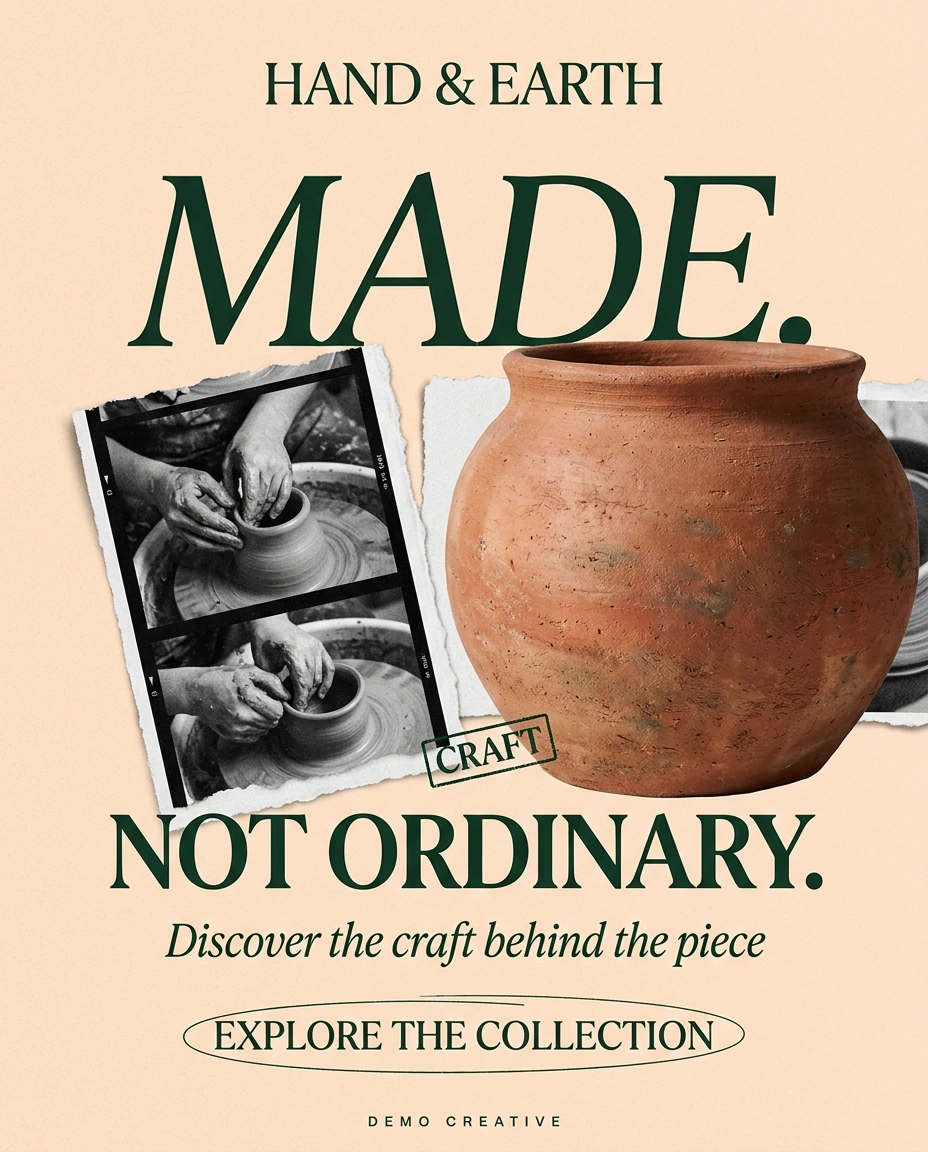
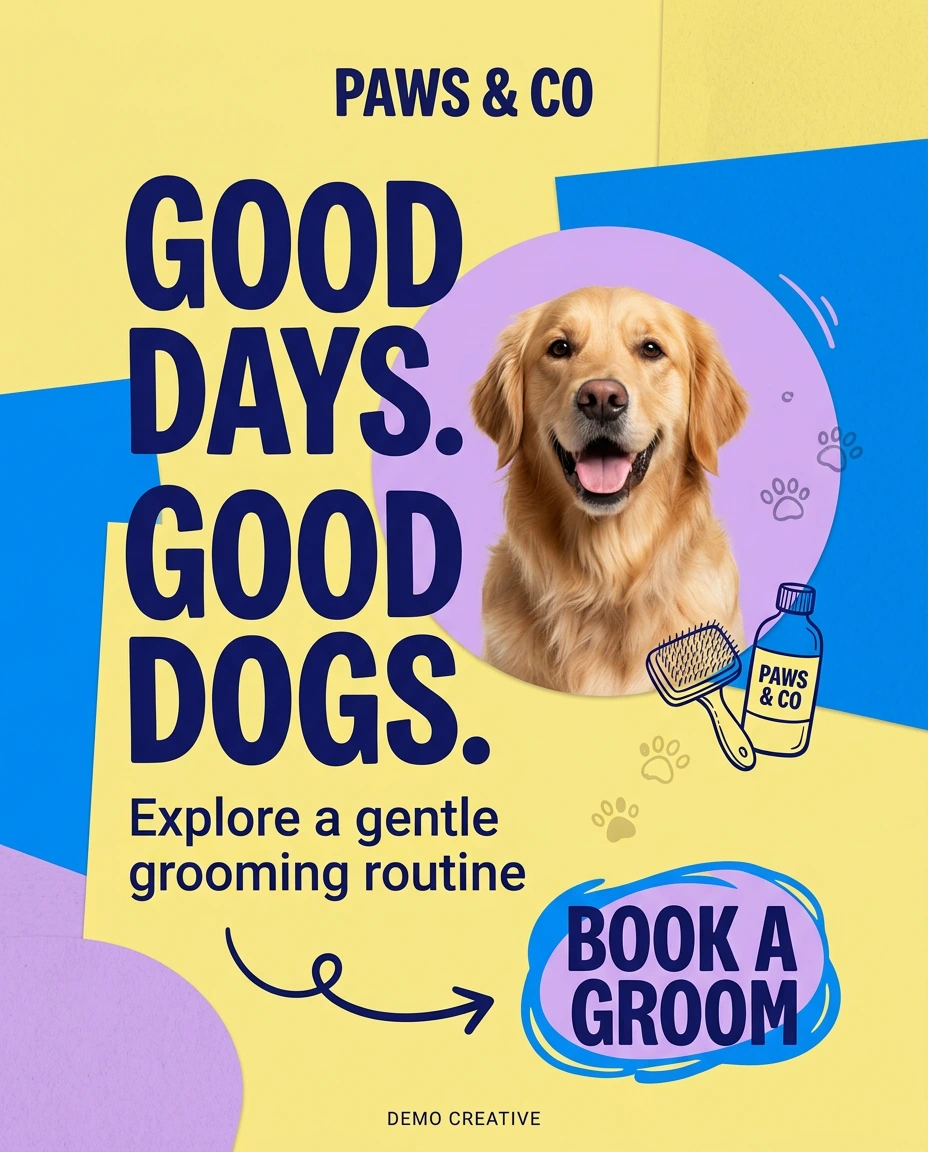

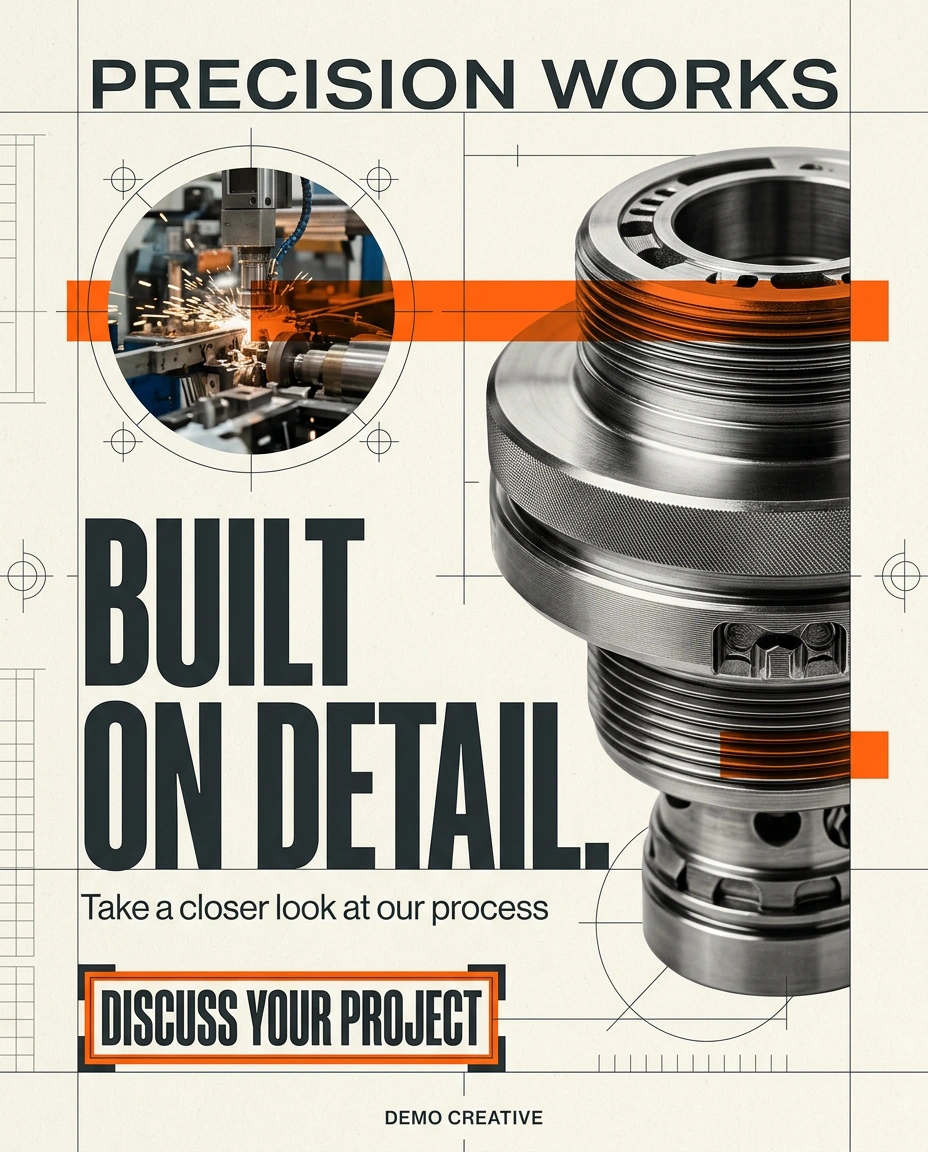
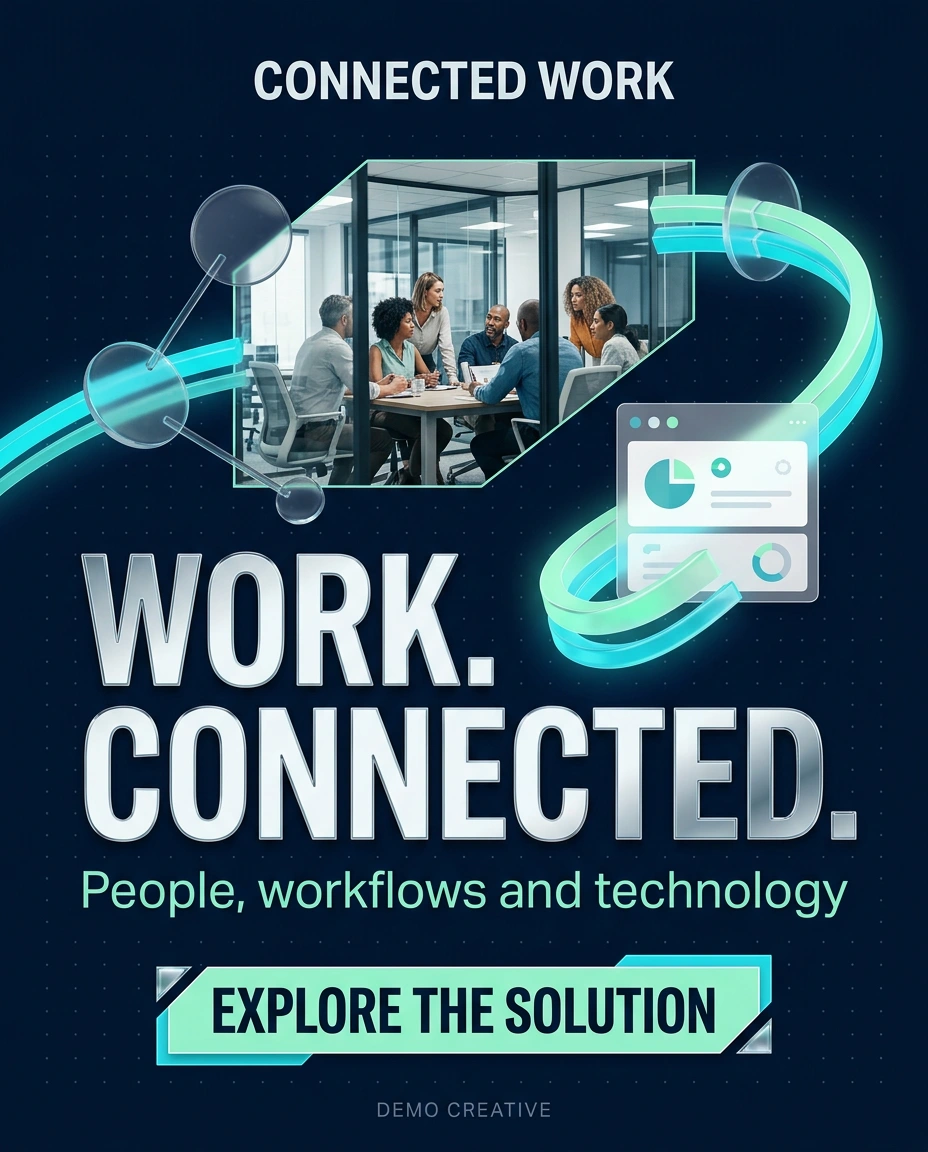
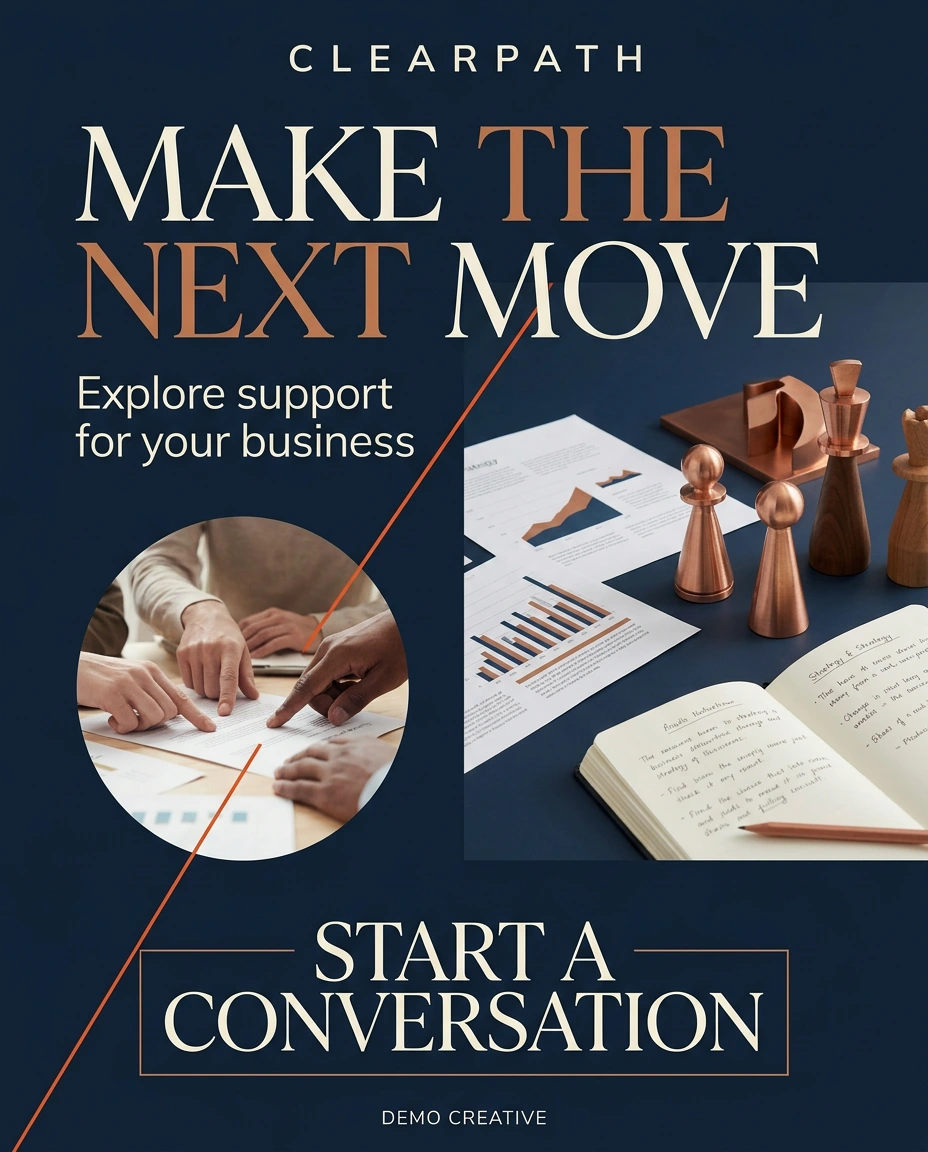
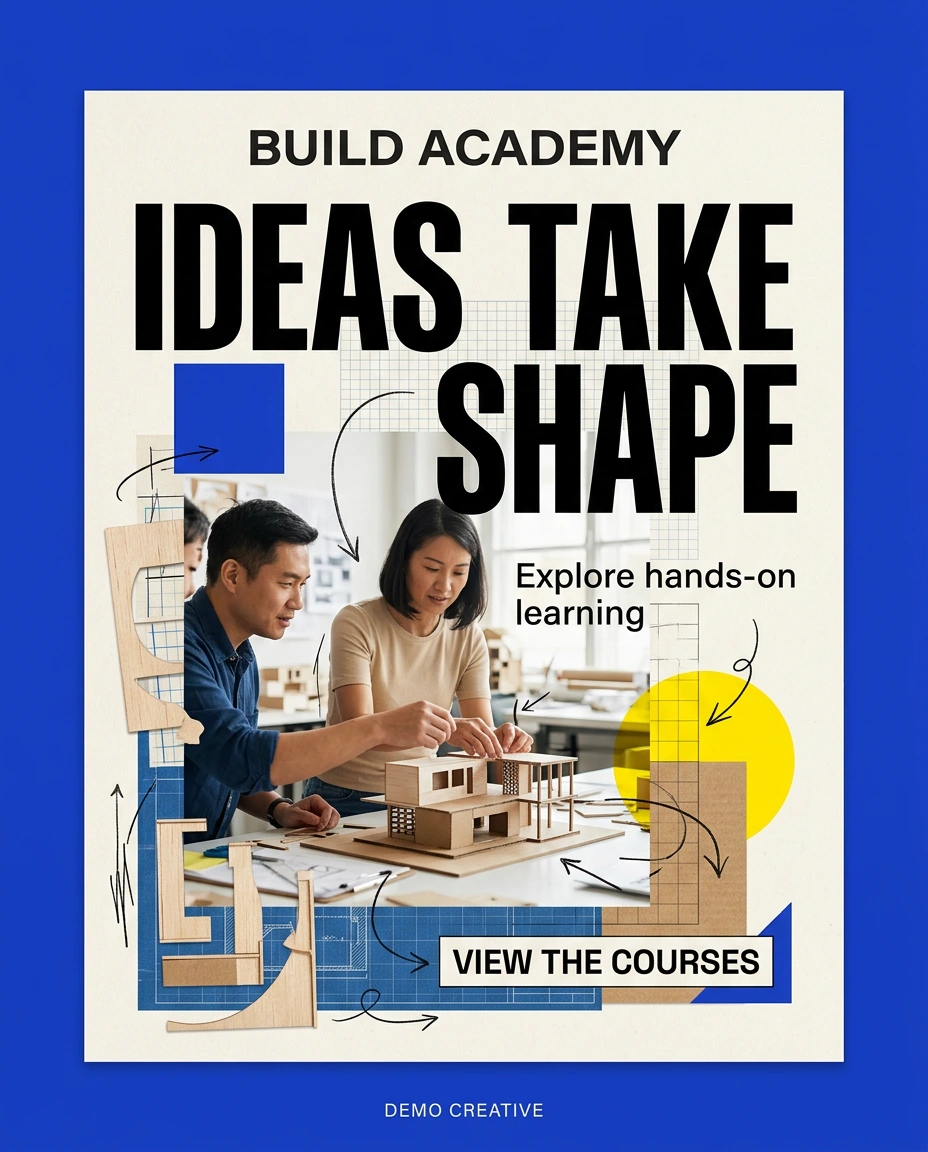

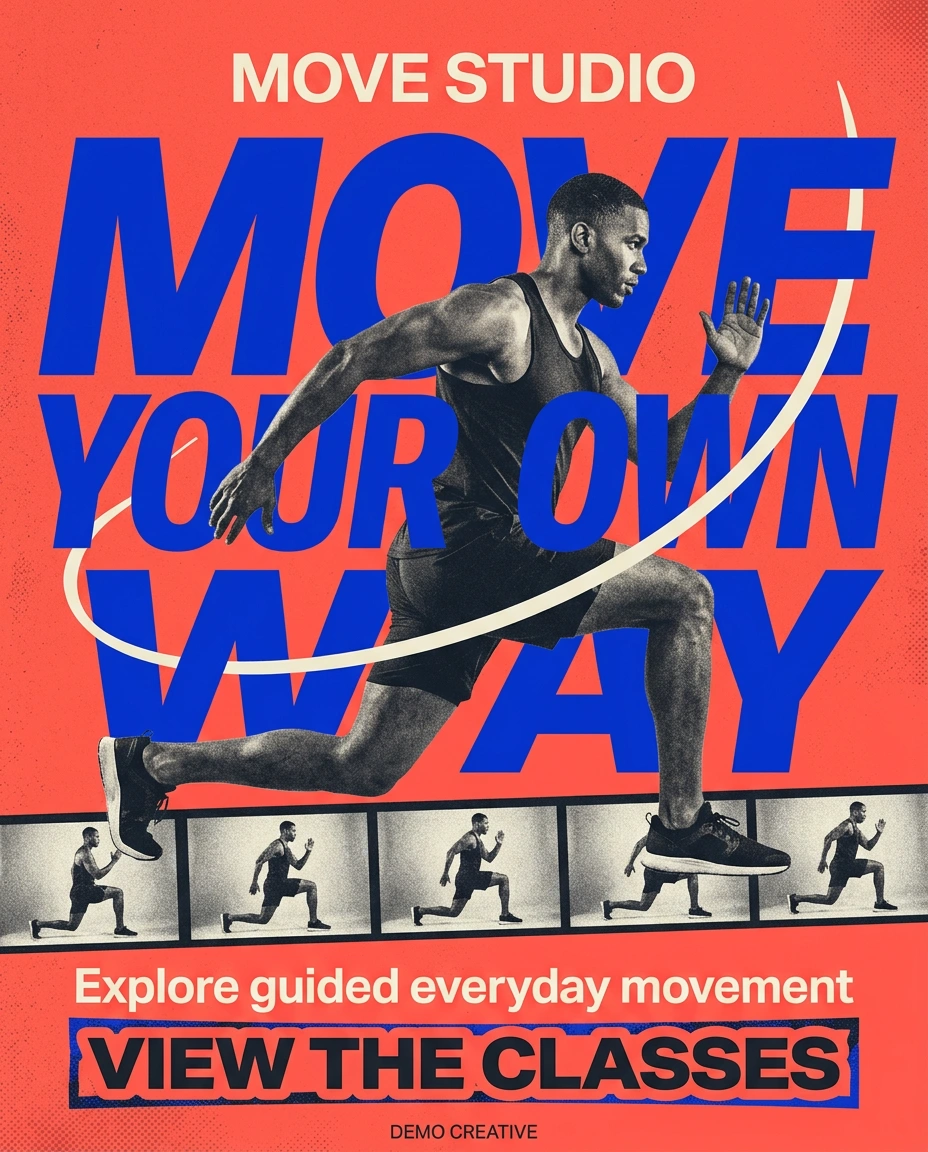
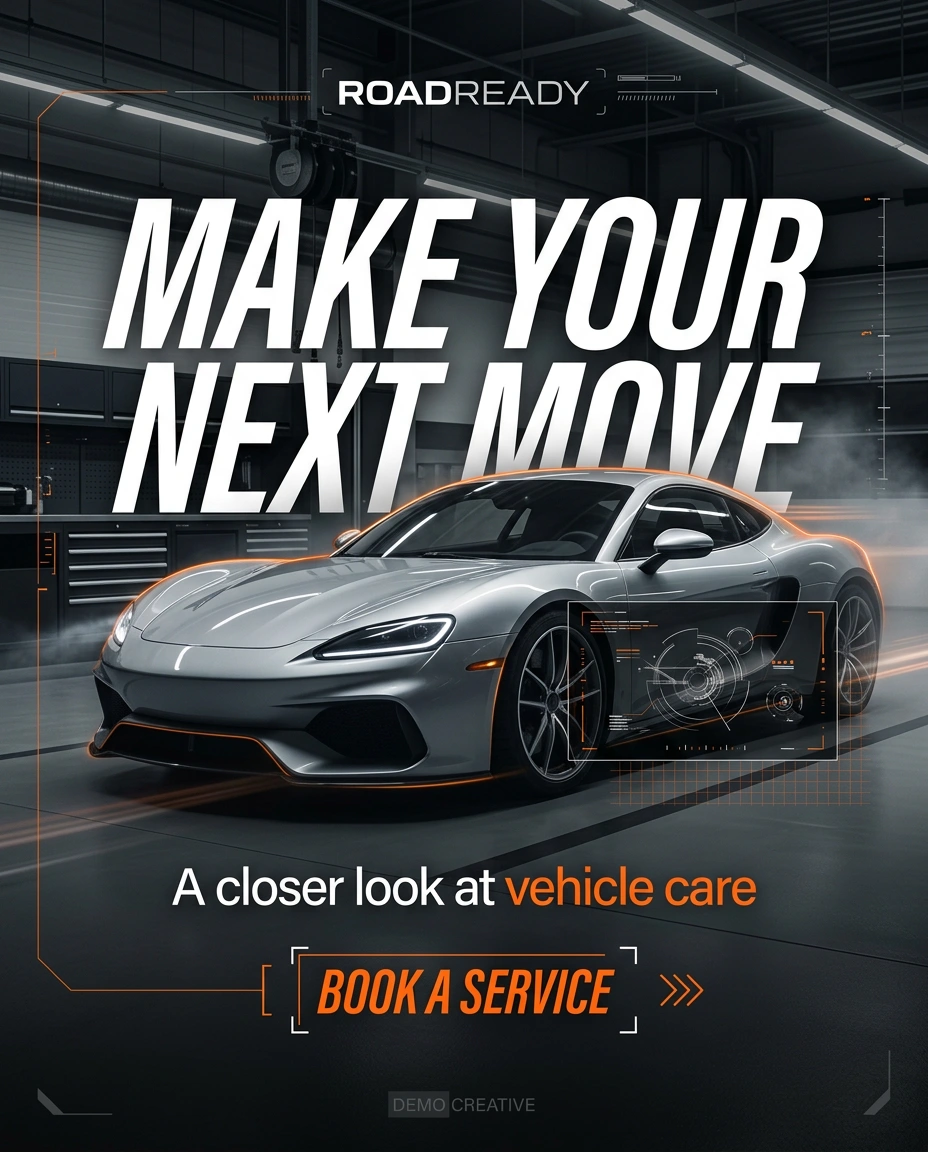
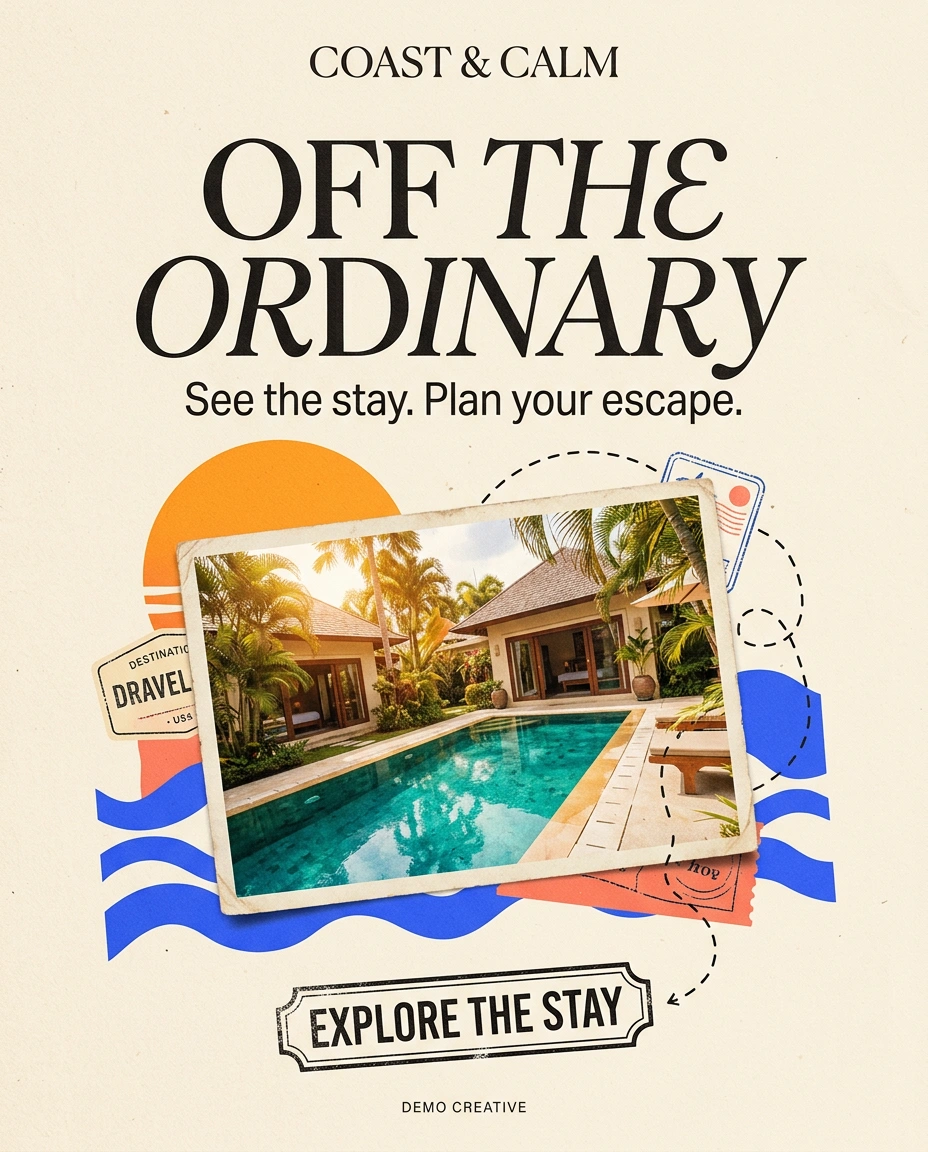
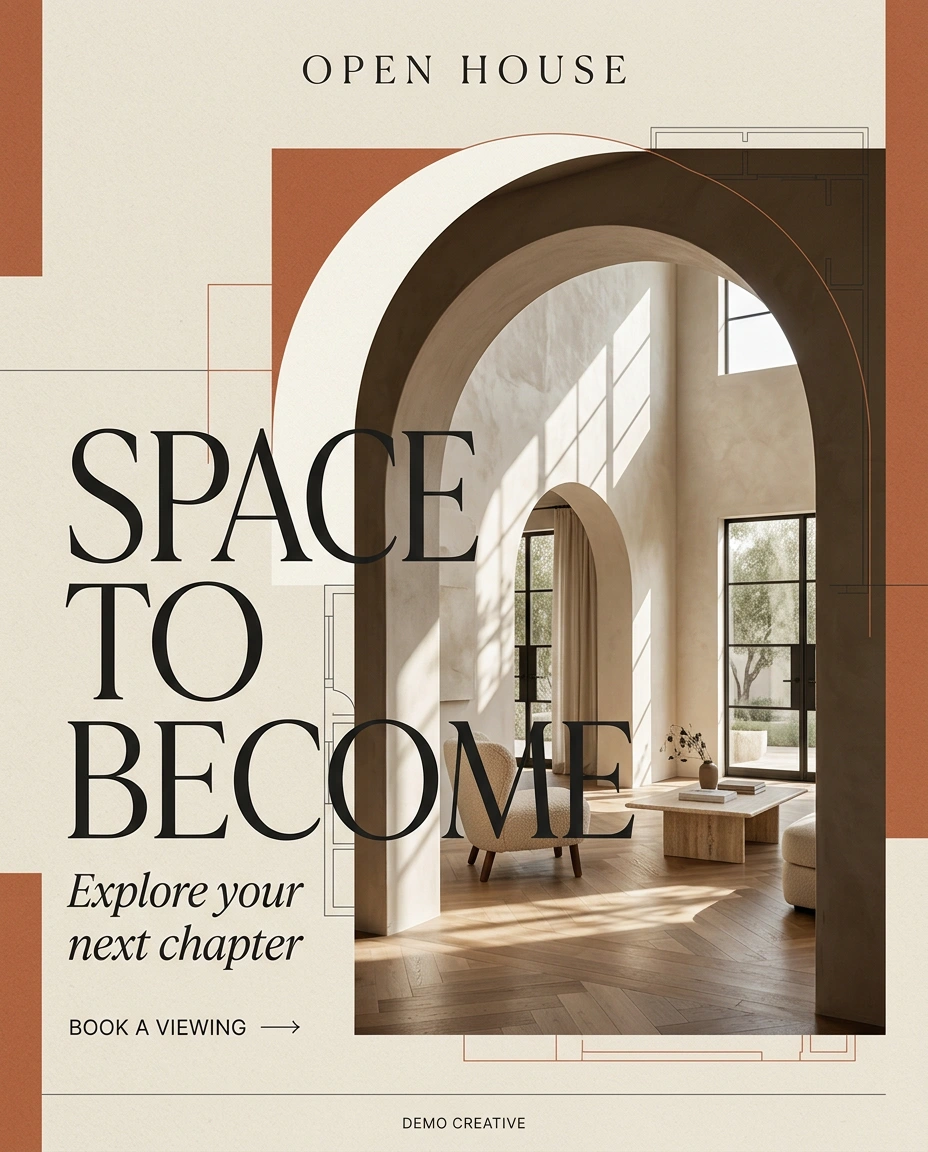
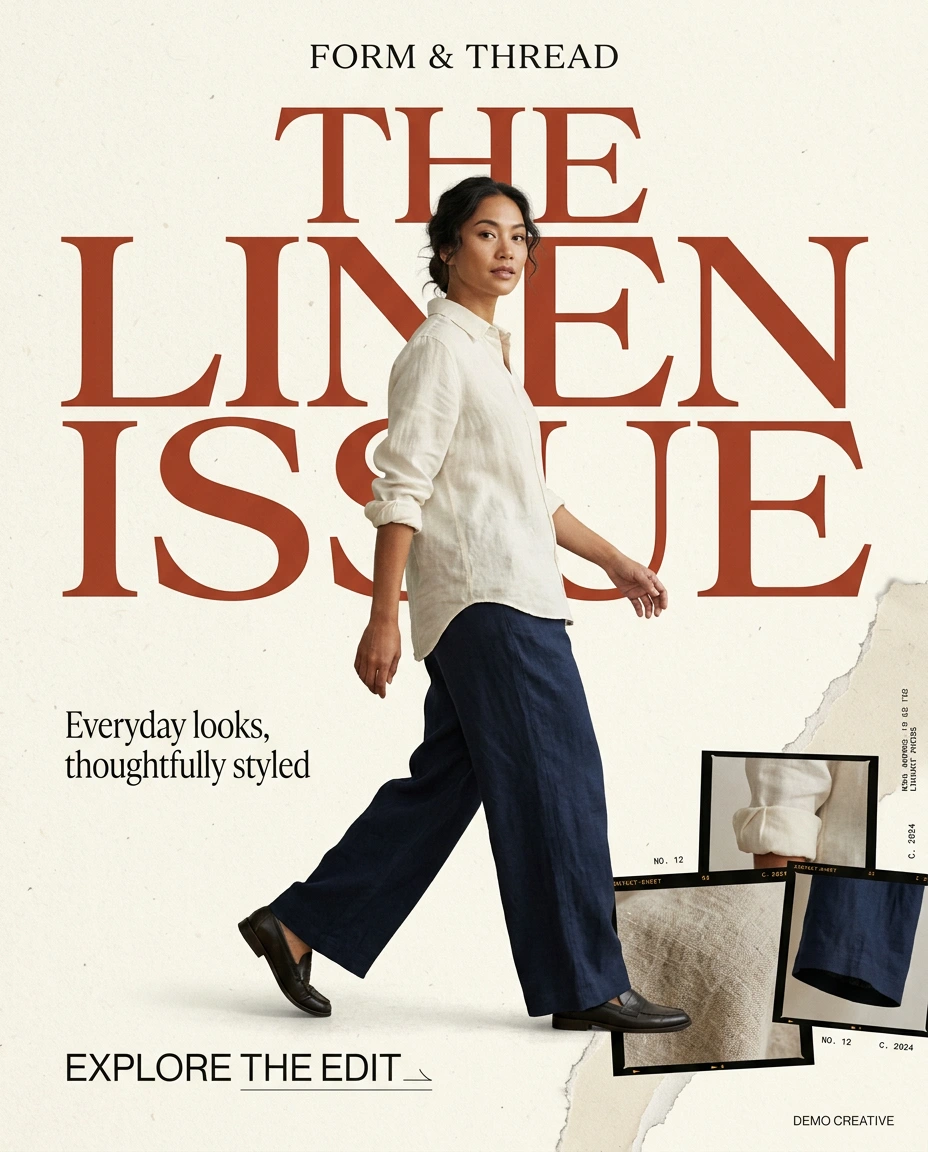
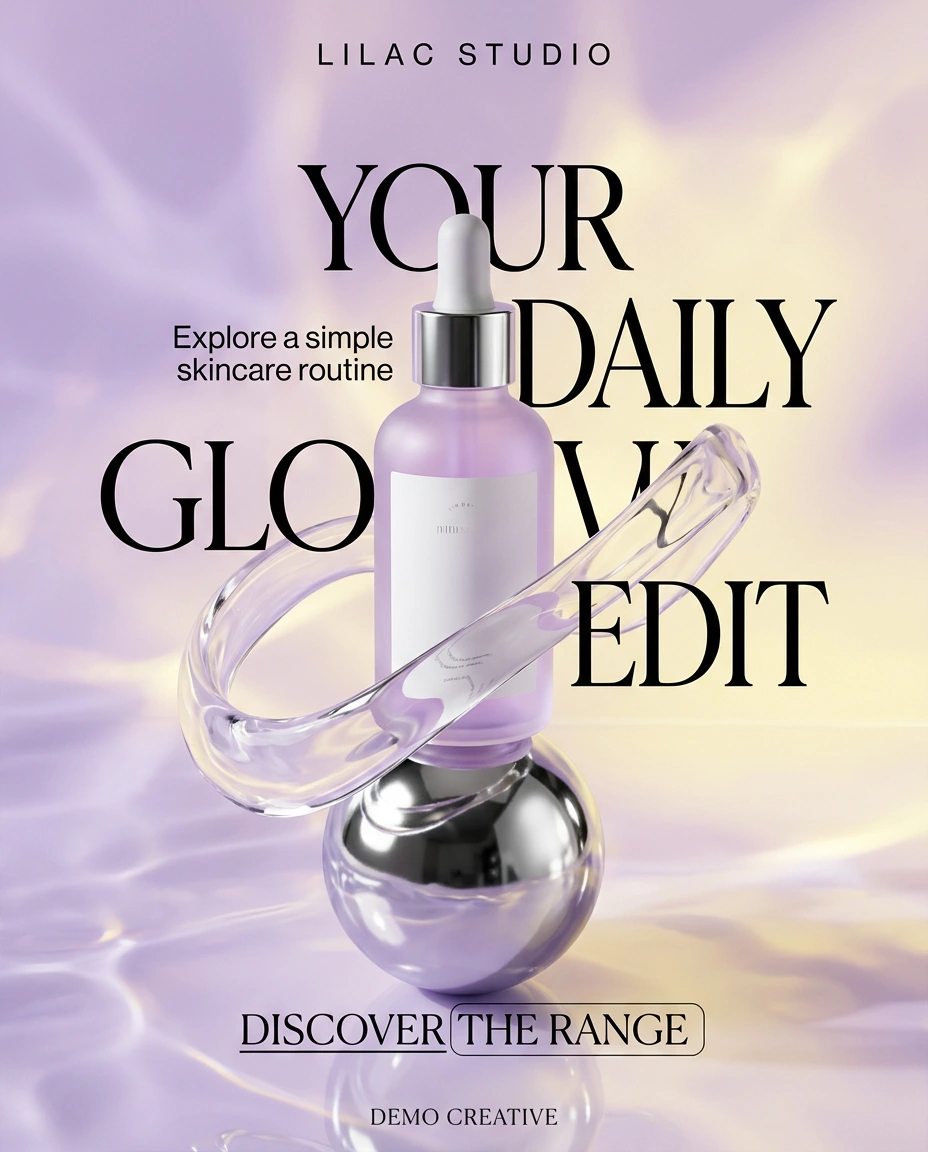
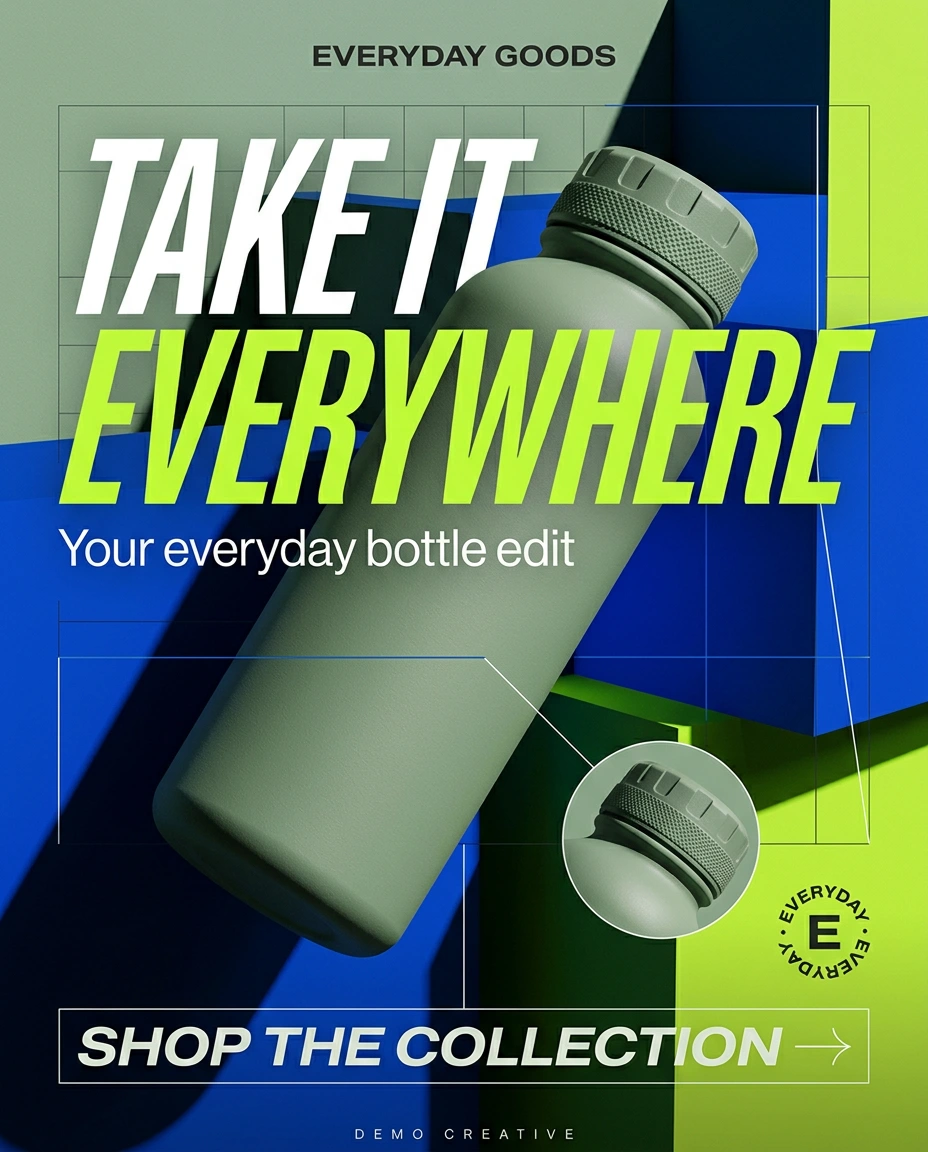
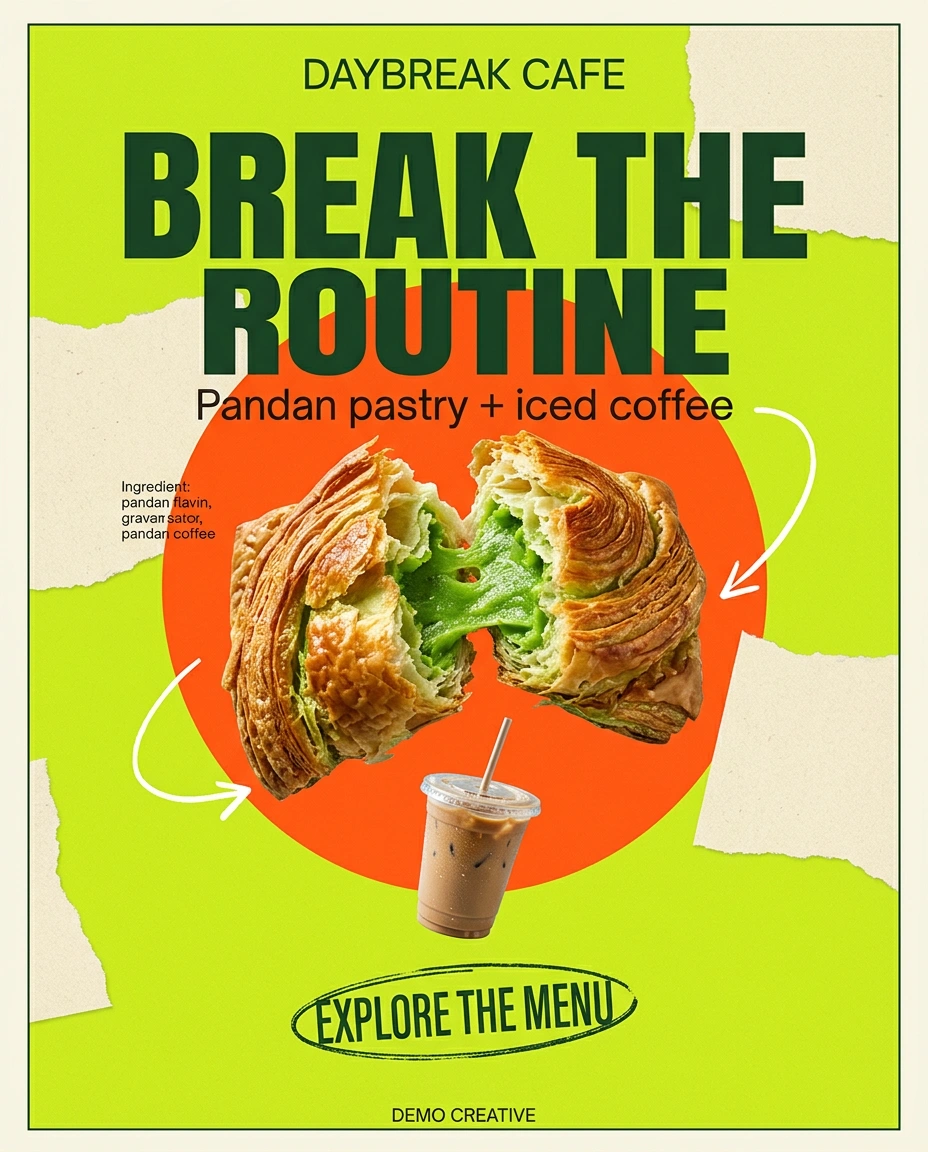
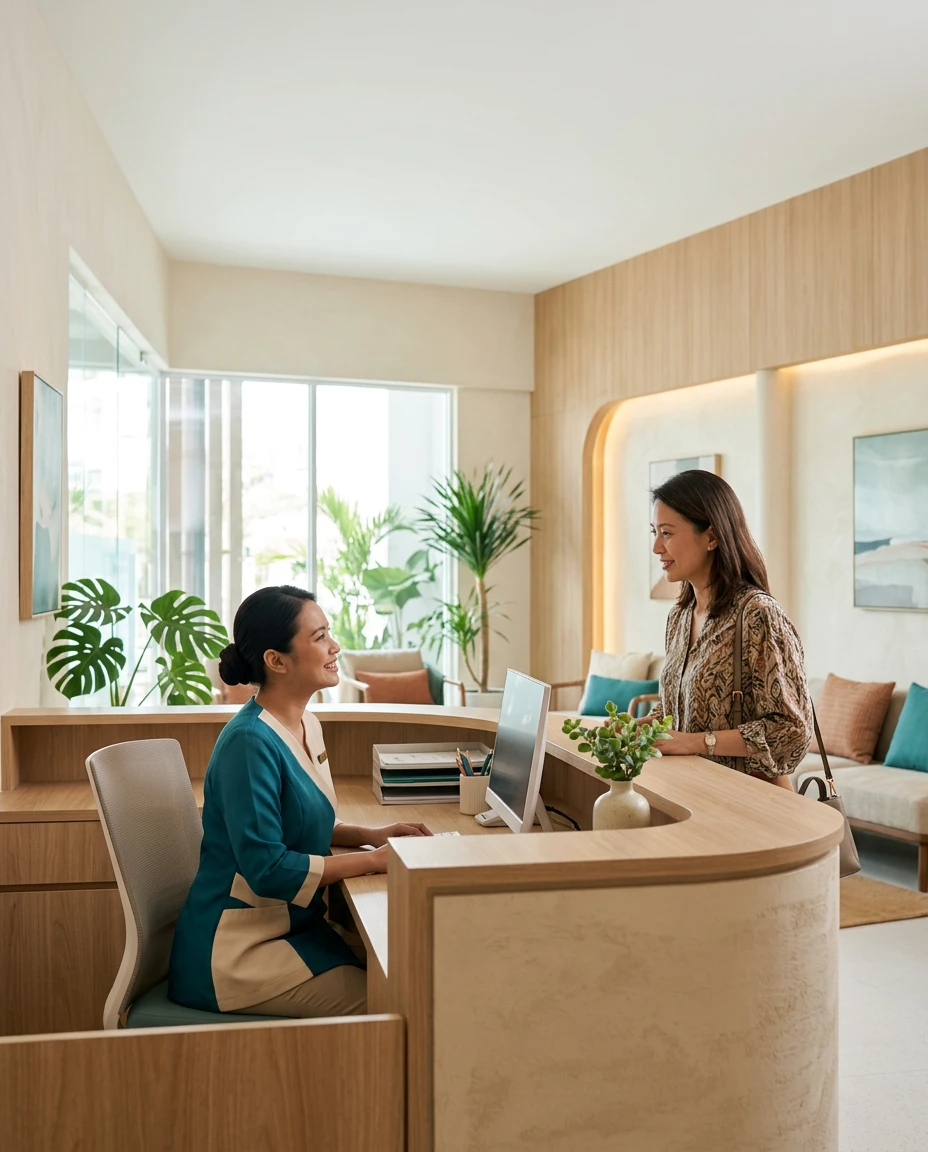




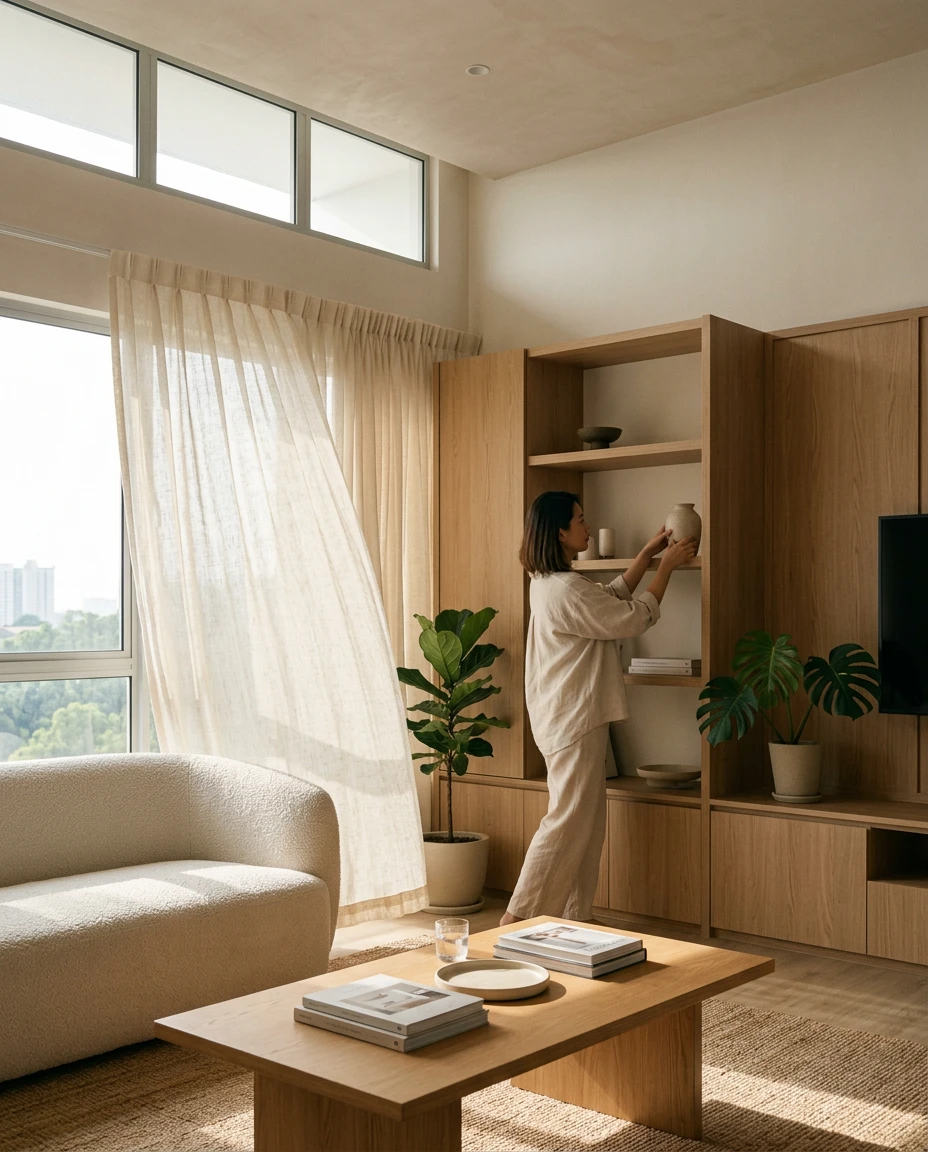
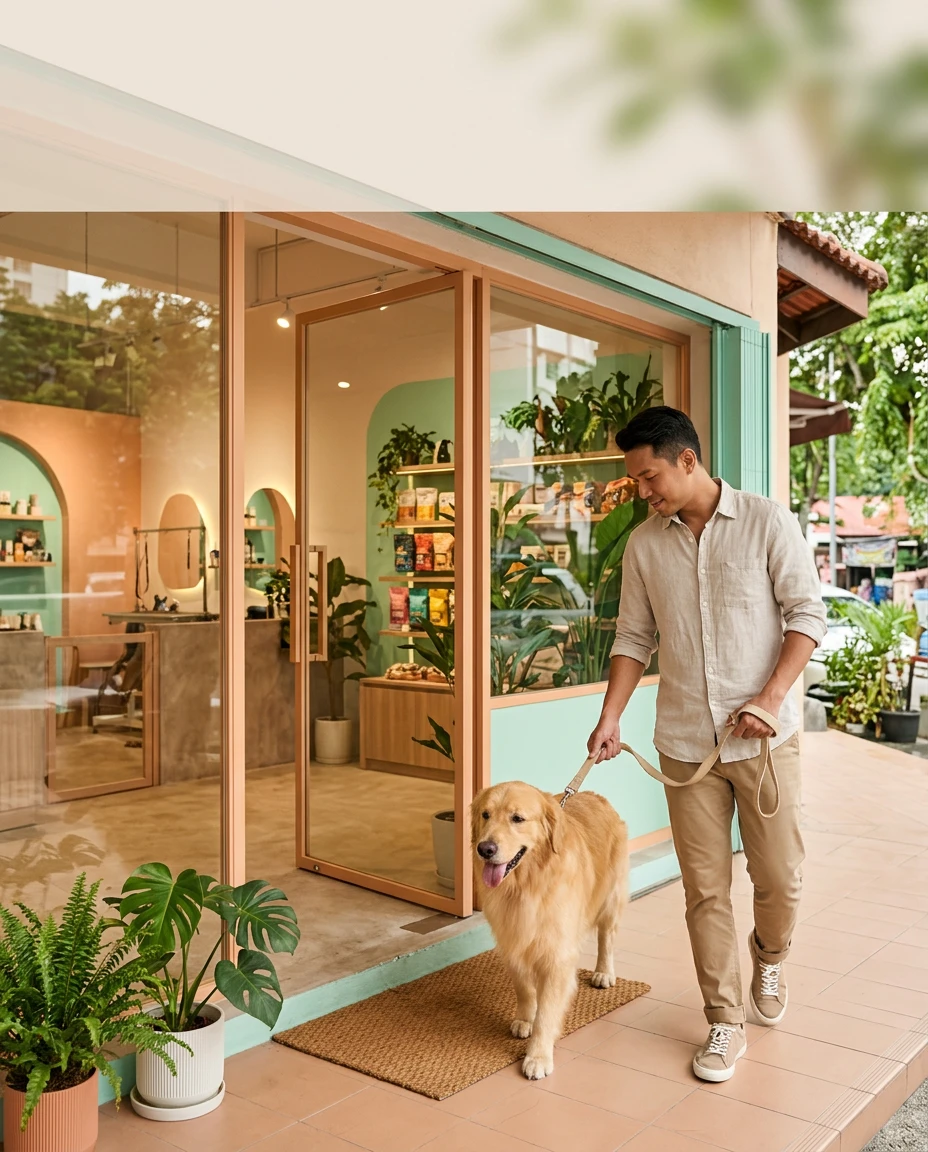
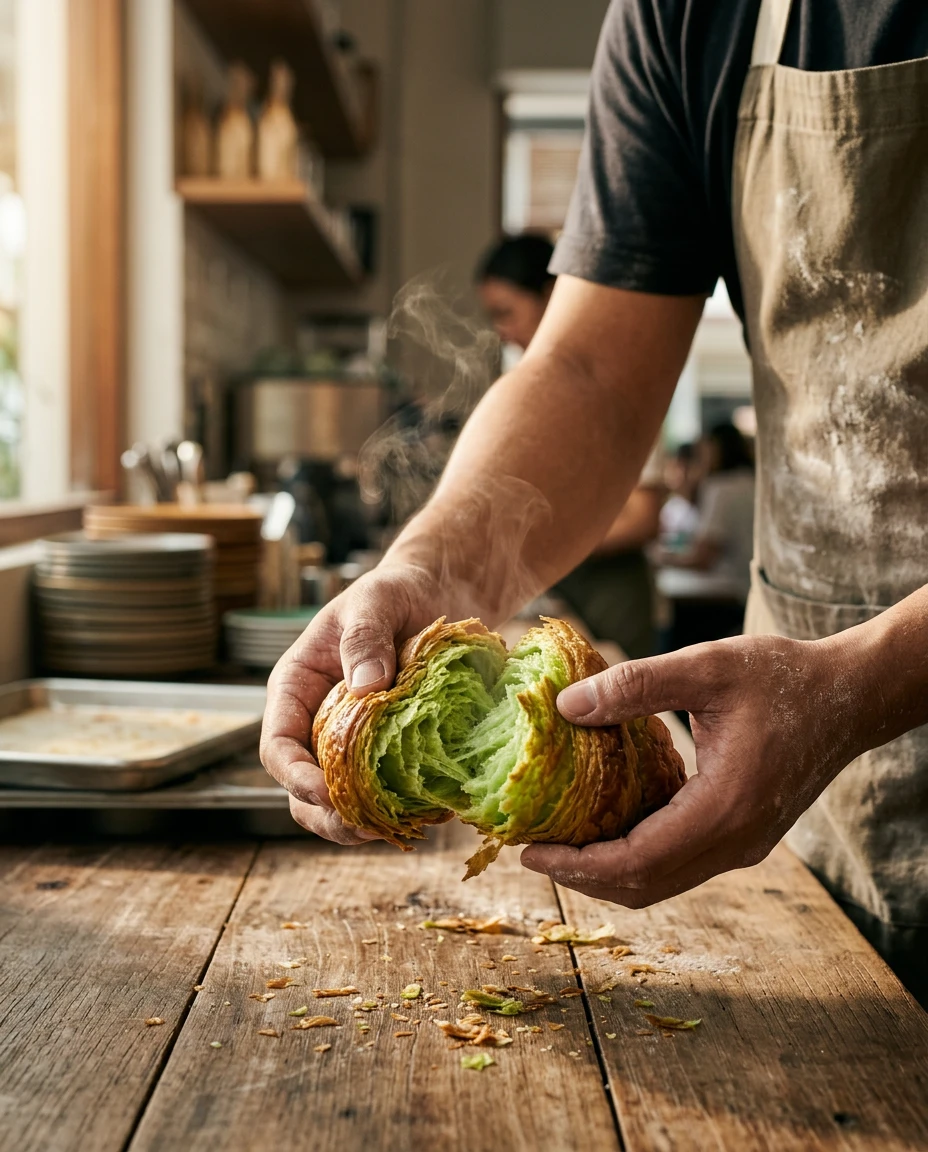
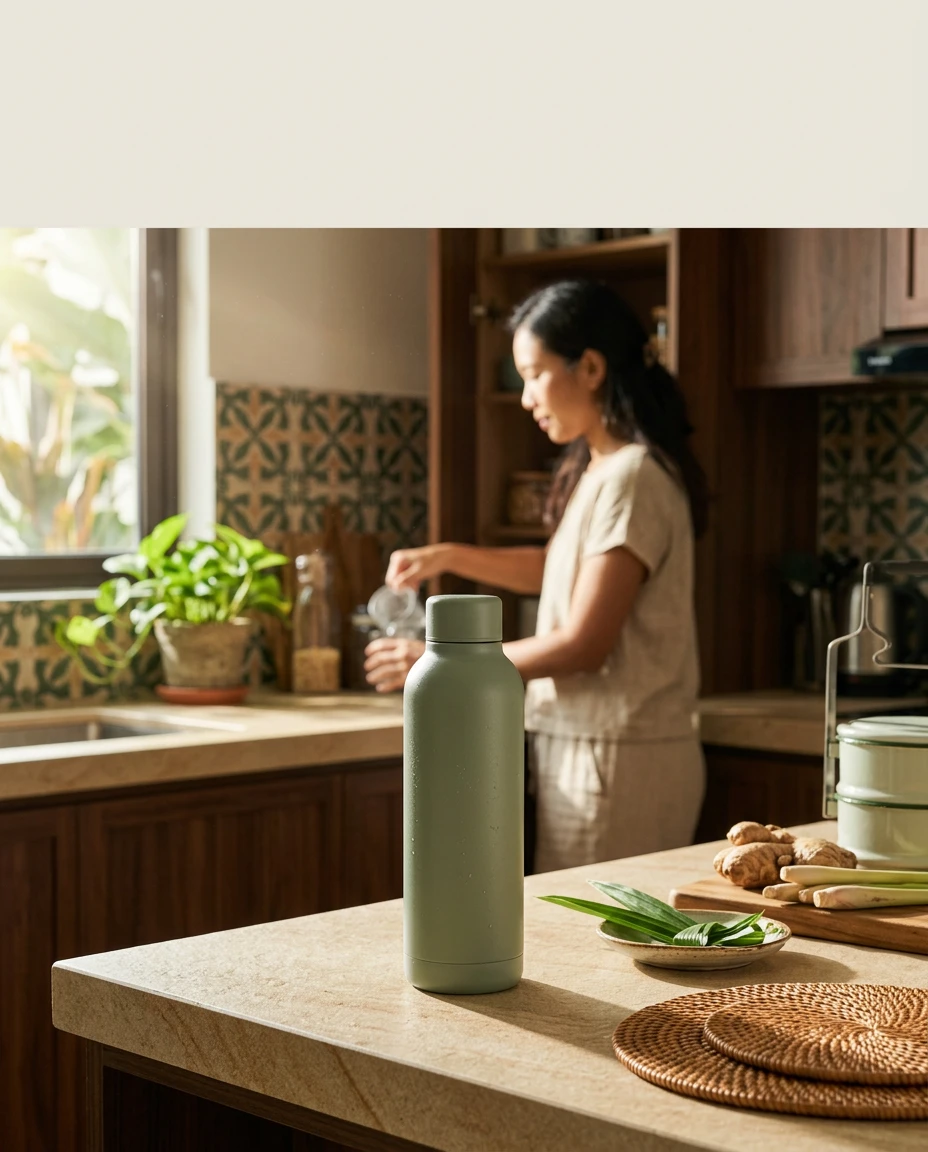
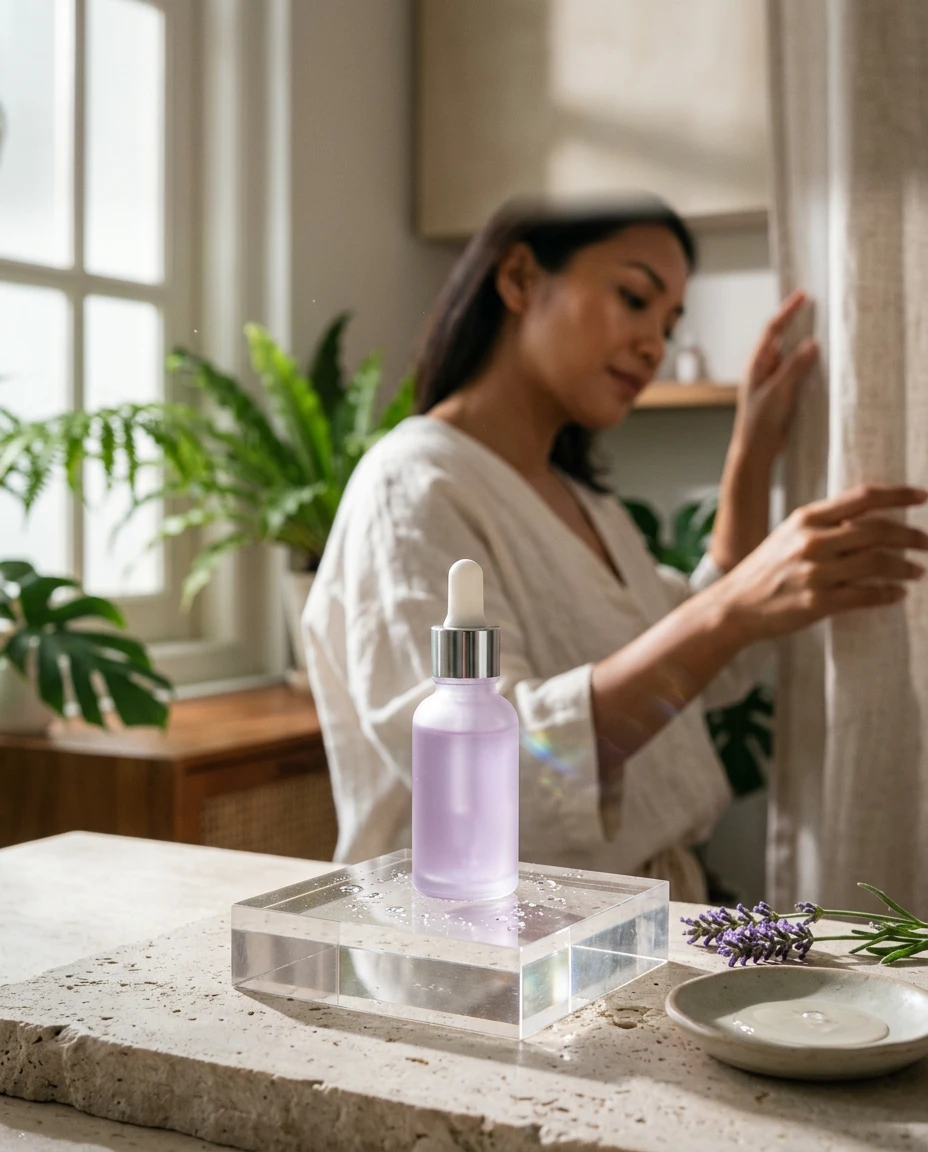
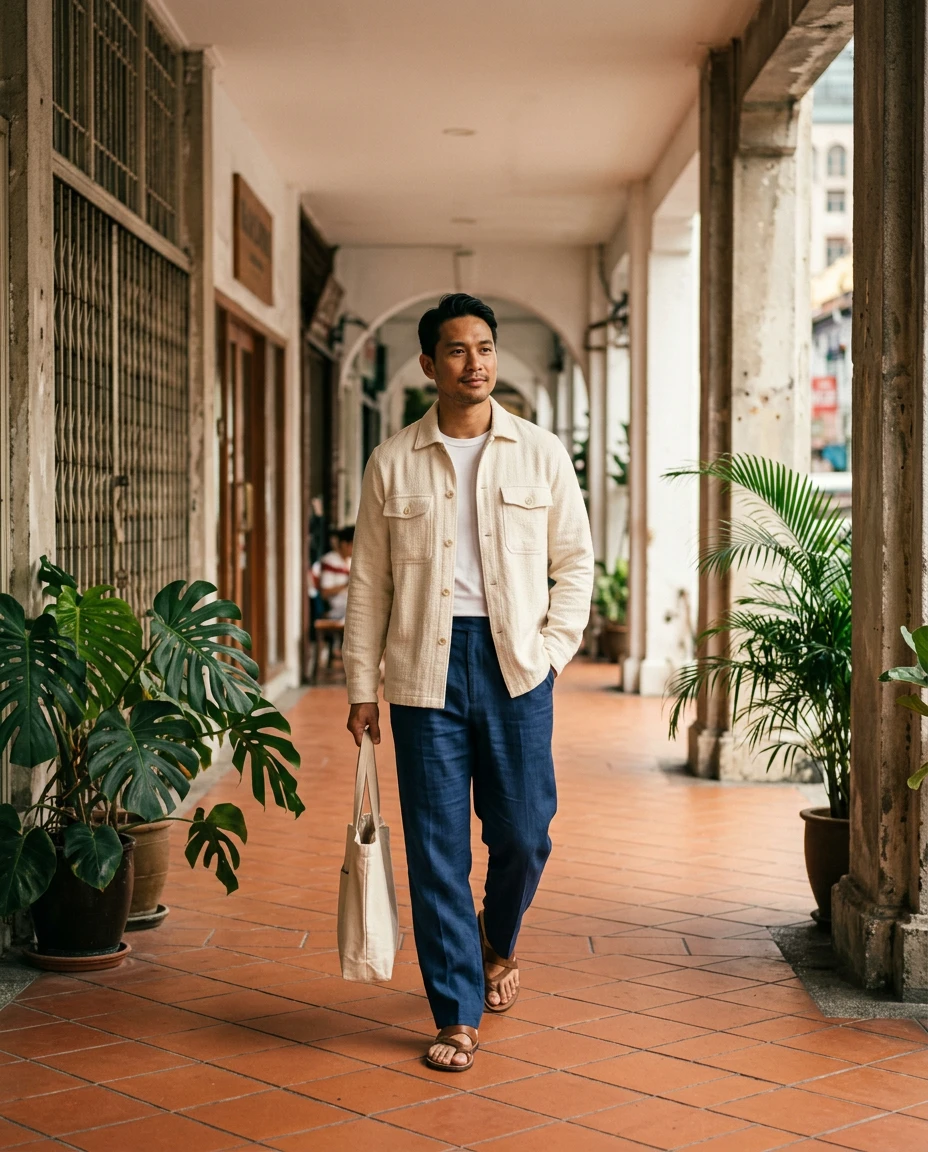
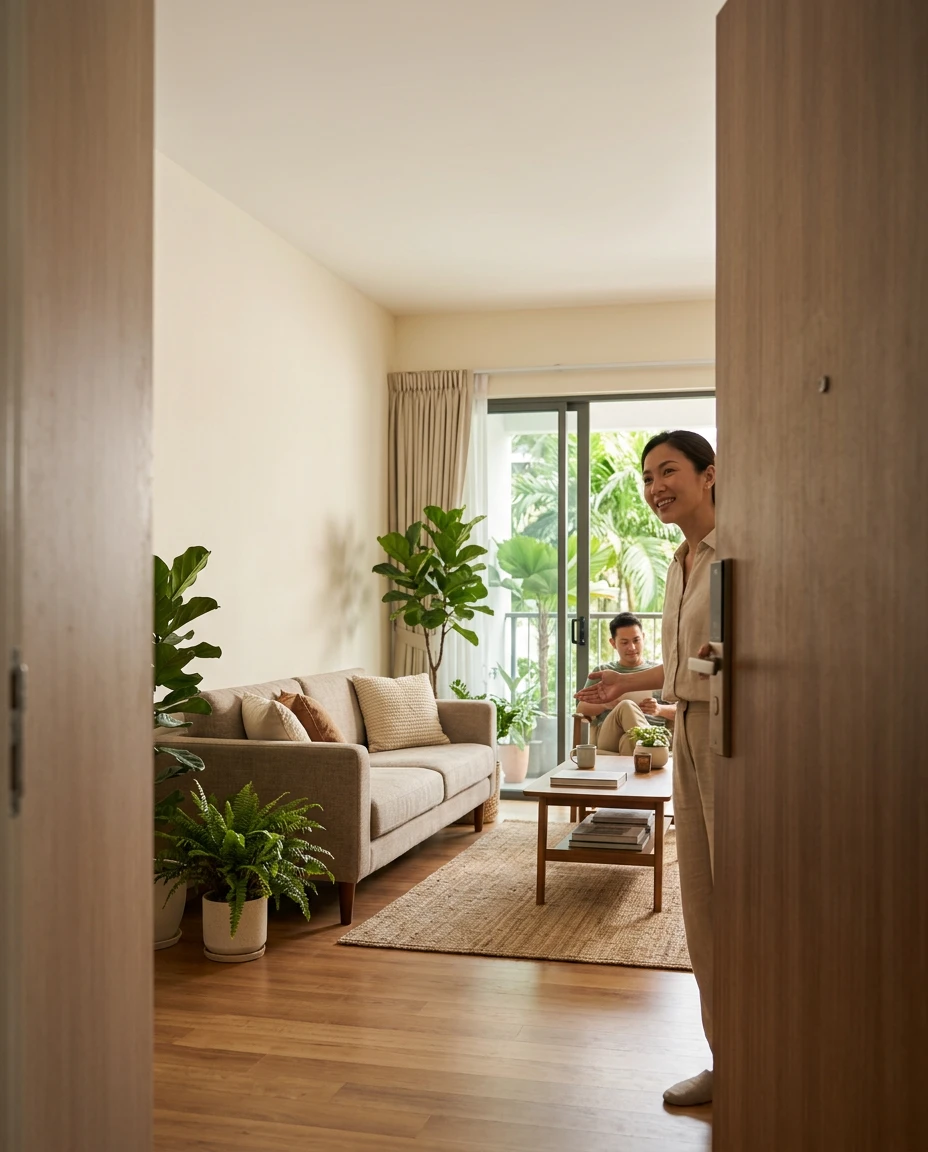
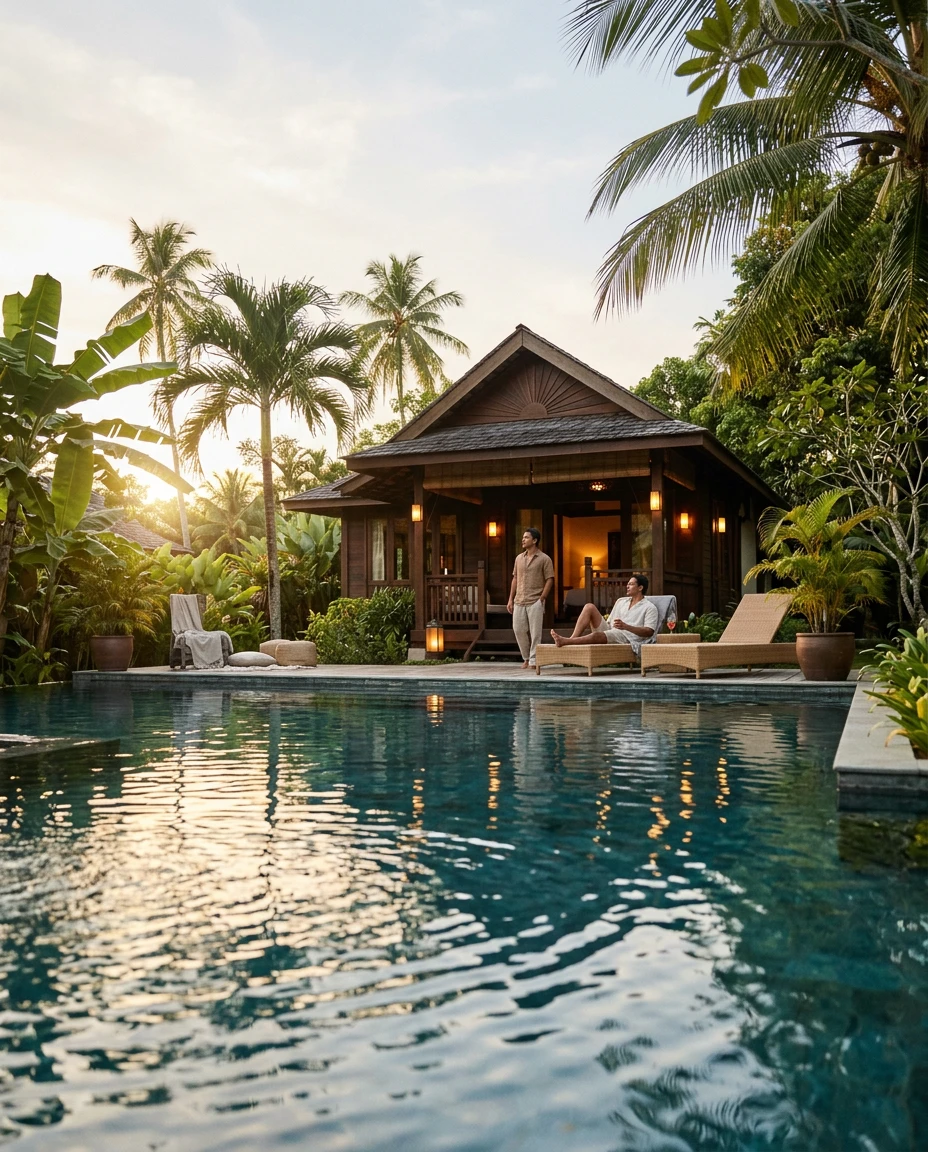

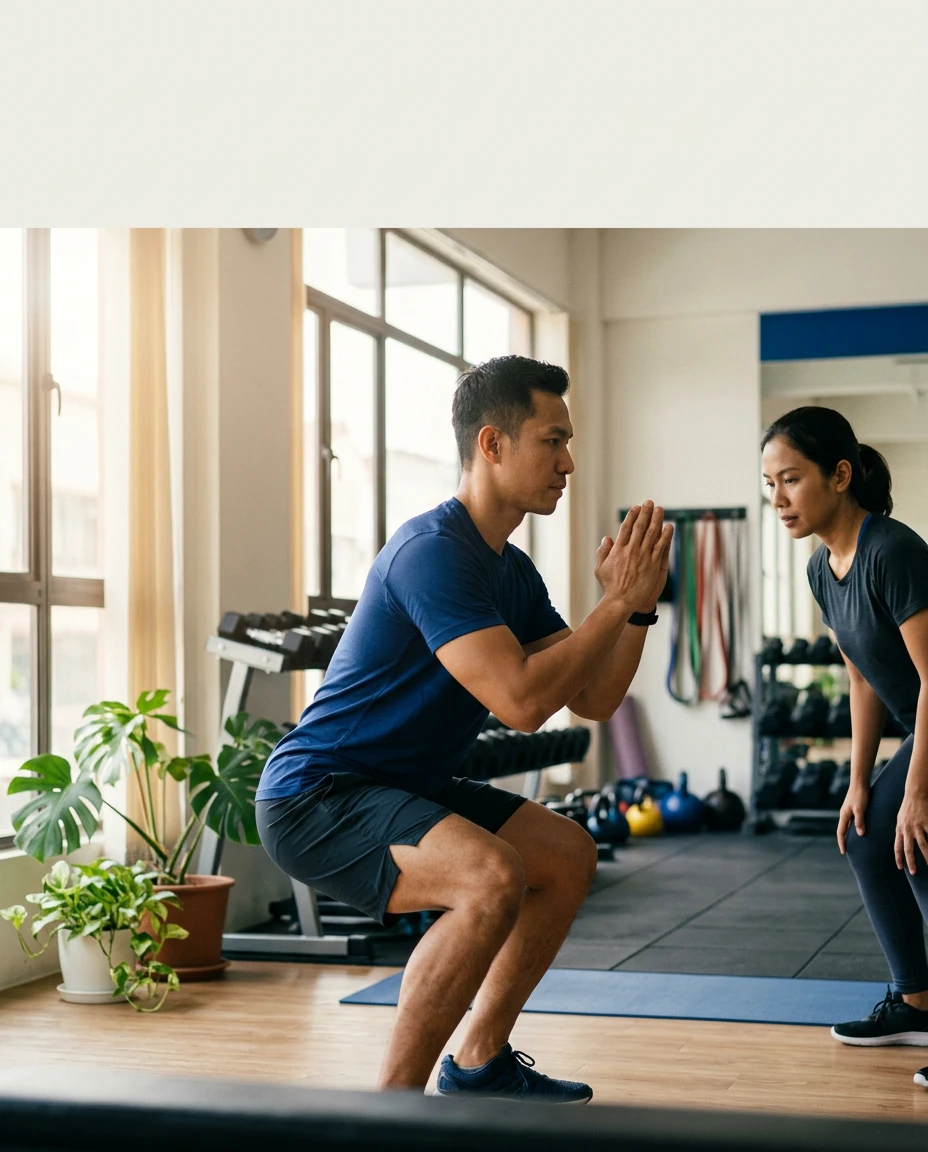

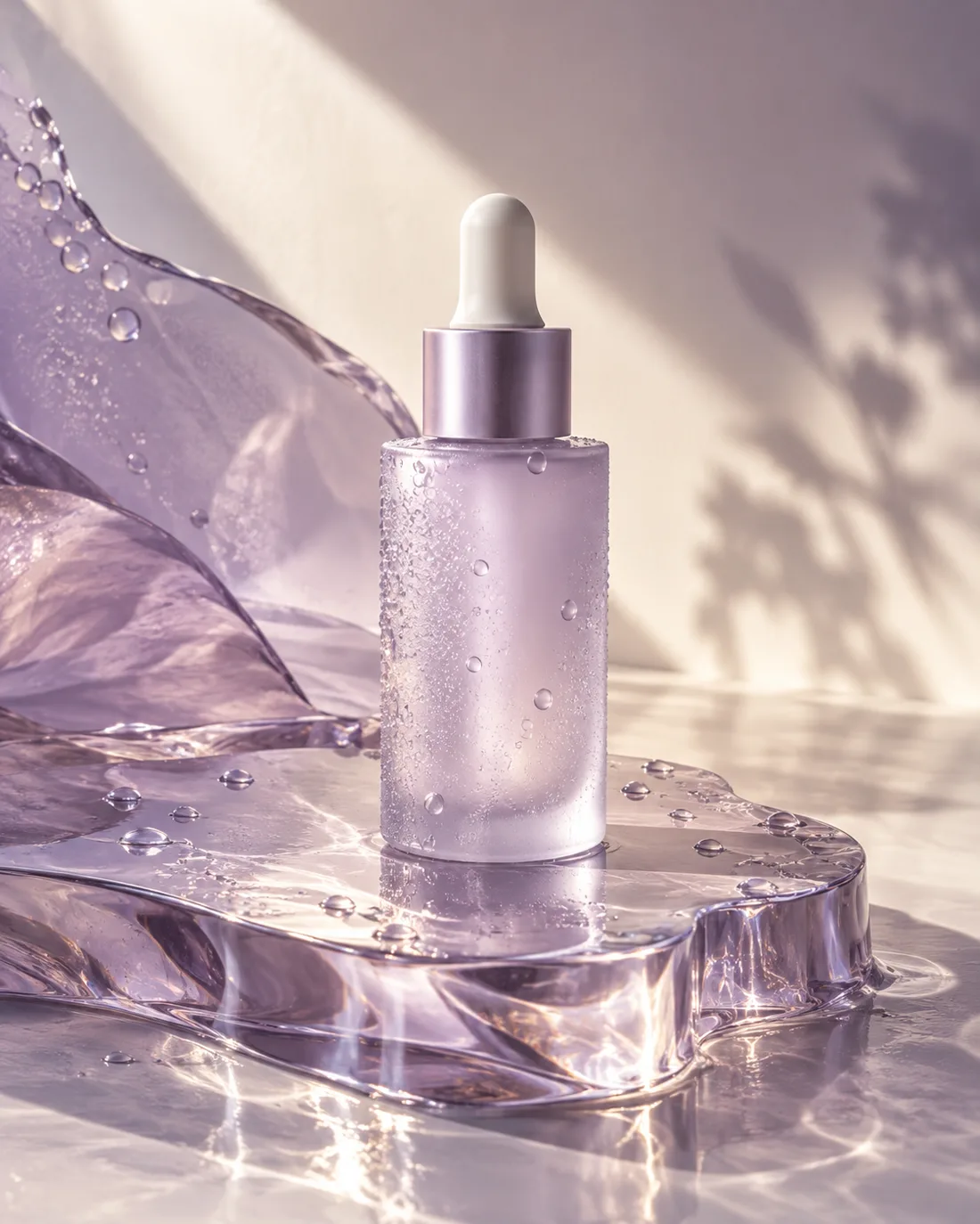
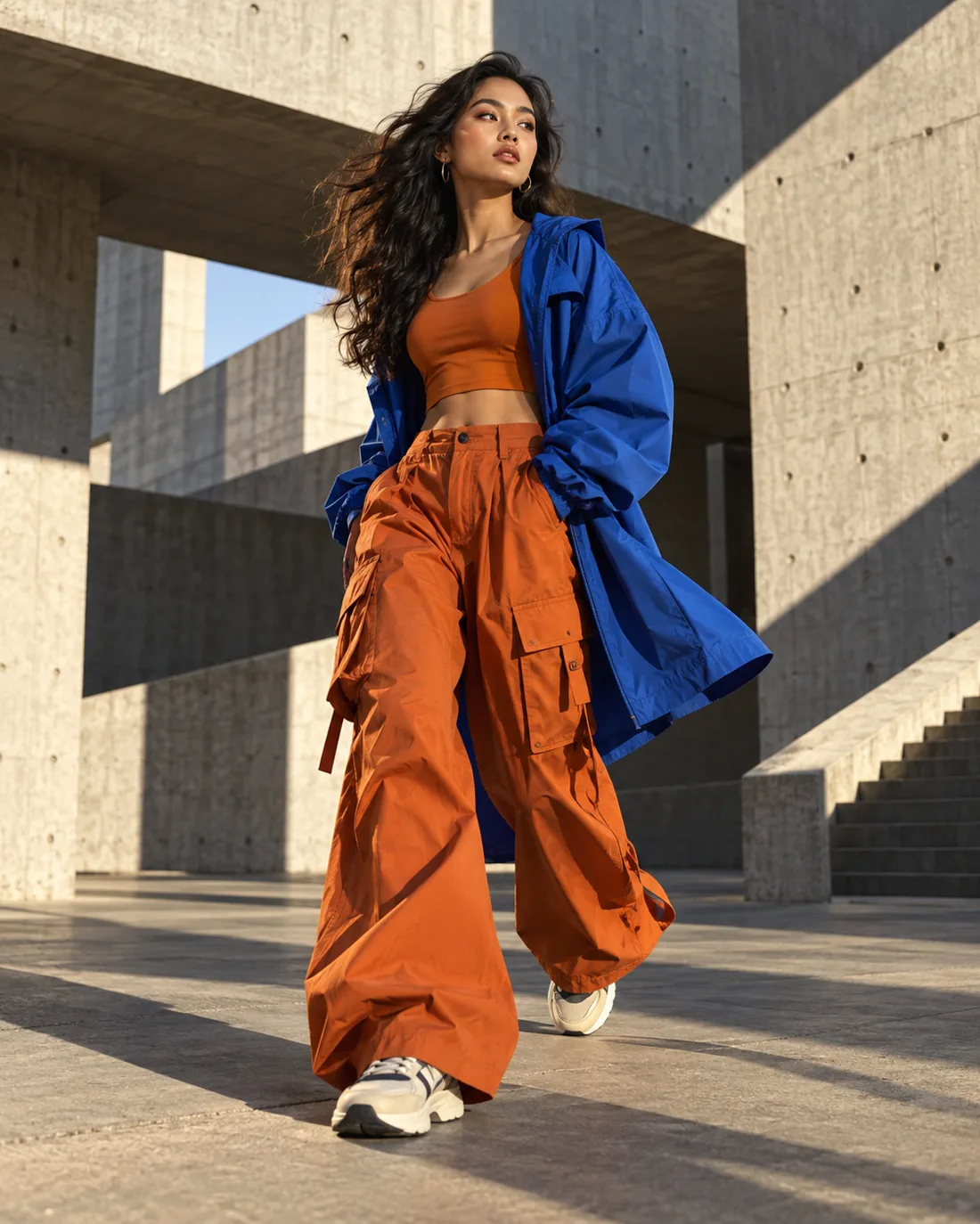
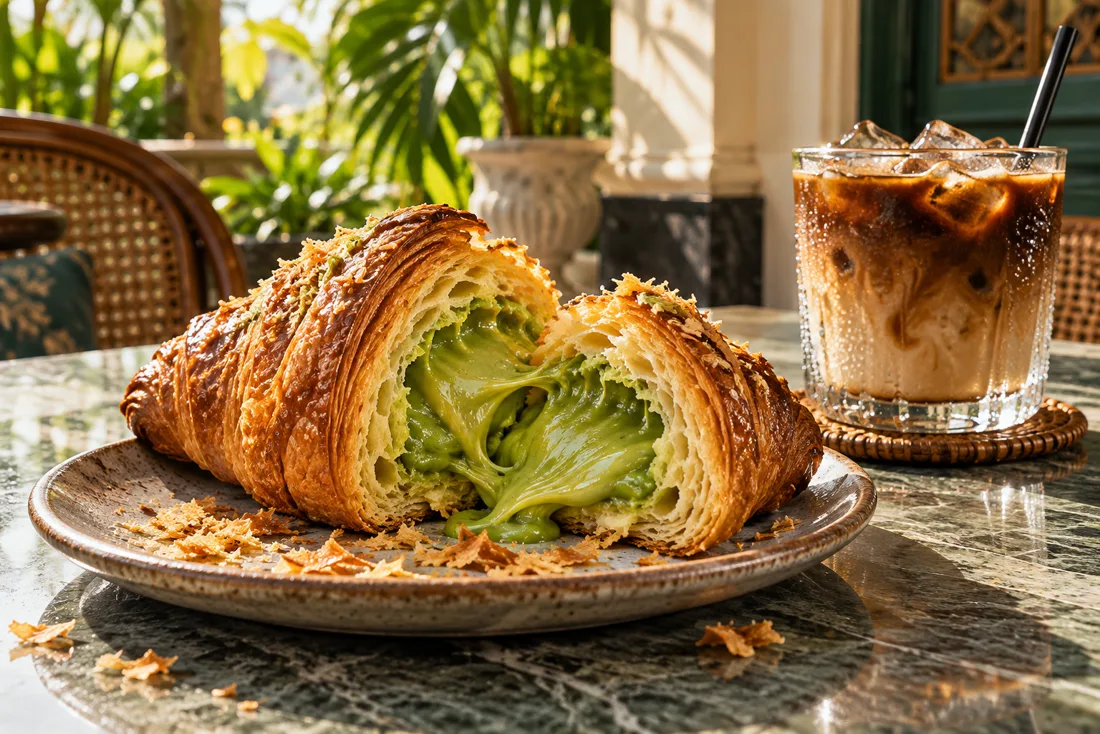

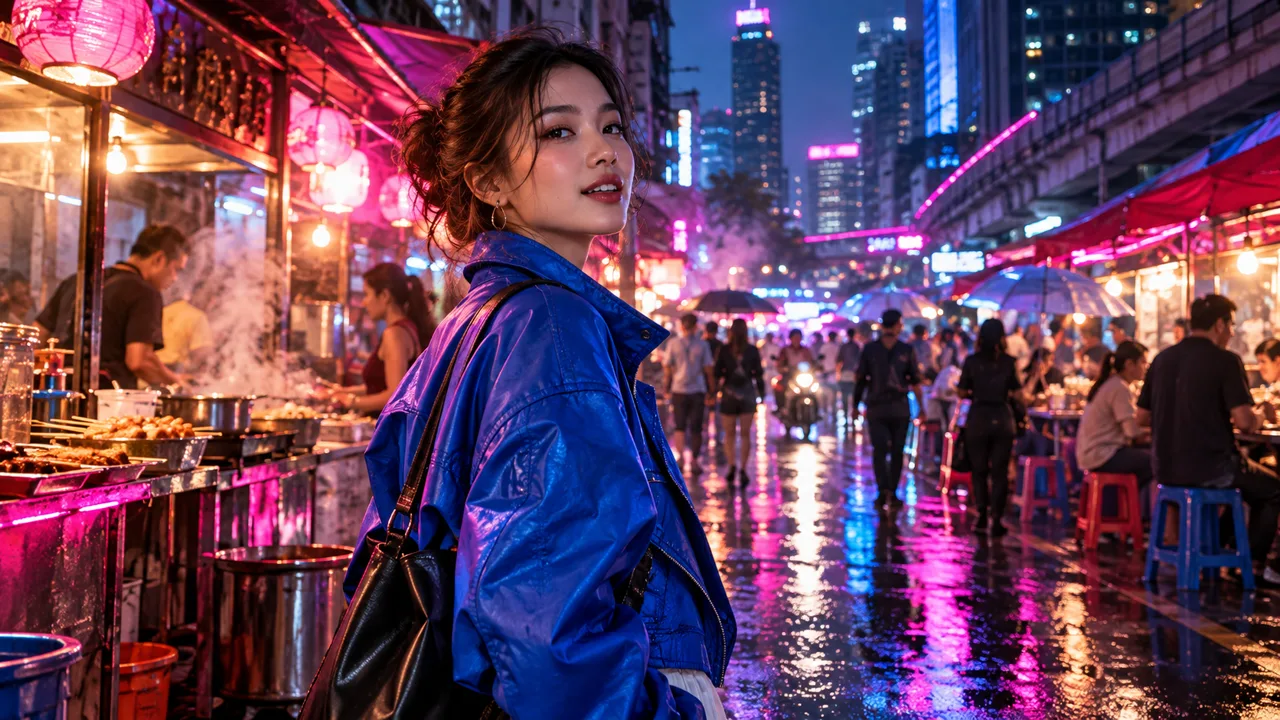
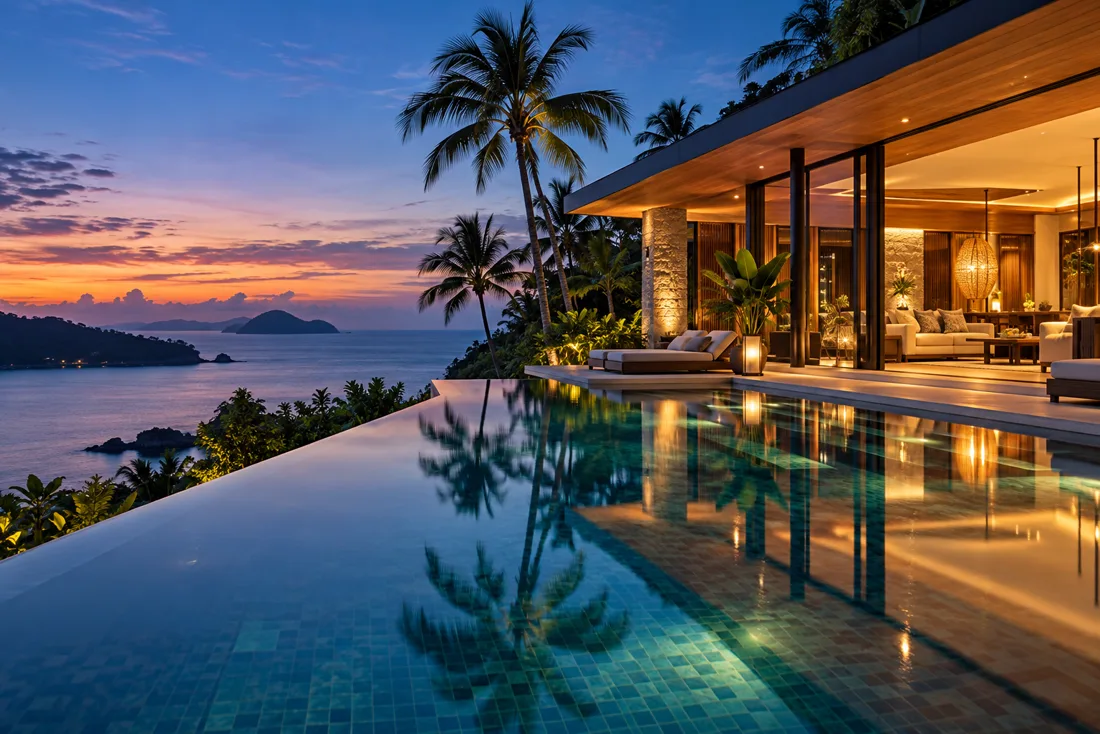
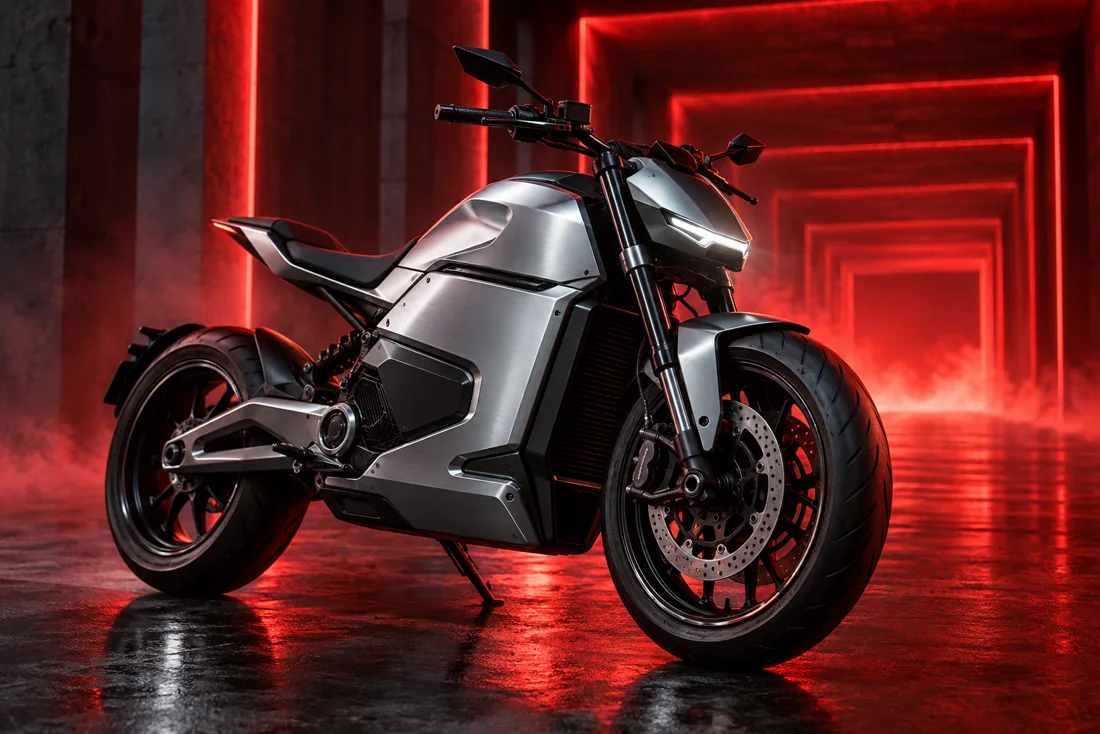
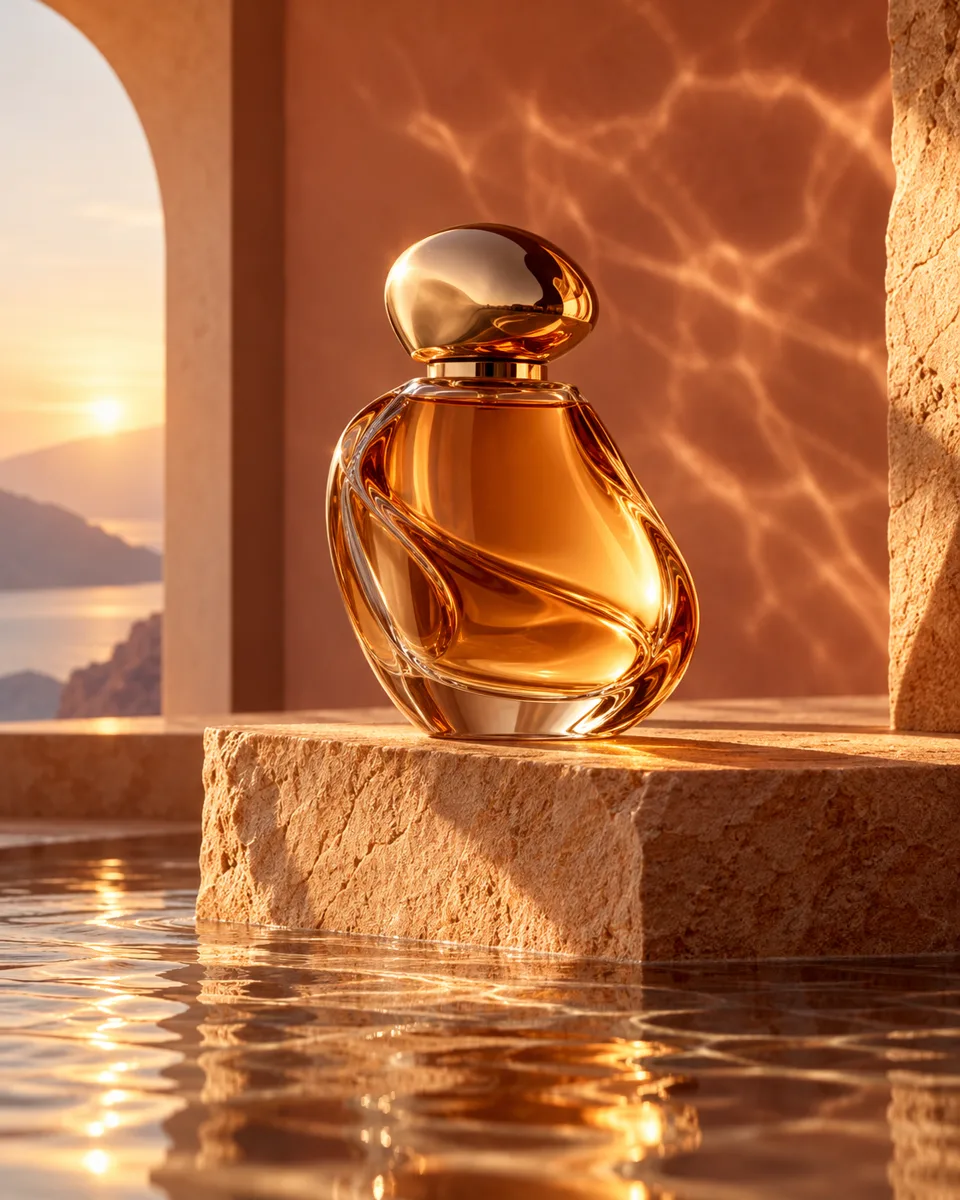
Choose a template inside the workspace, upload your product reference and describe the result you want. The assistant helps adapt the direction. Results vary by model, settings and references.
Attach a reference when the result should follow a real product, person, setting or style. For a product ad, a clear product photo helps preserve shape and packaging.
The cost changes with model, resolution, video or music duration, and speech length for avatars. Review the estimate in the workspace before creating. During the private pilot, generation is enabled for admins.
Choose a style inside the workspace or describe something entirely your own.
Open Video to prompt beneath the chat, upload a short clip or paste a public YouTube, TikTok or direct video link. Choose a video model and duration, then Analyze video.
Use a clip up to 30 seconds. File uploads support MP4, MOV, WebM and MPEG up to 8 MB. If a social site blocks link access, upload the clip instead.
The agent describes the scene, camera movements, style, sound and timed cuts, then prepares an editable recreation prompt. Analysis uses the service budget; it does not generate media.
Choose Use prompt in this chat. Ask for changes or replace the product using your image references. Review the generation cost before generating.
The prompt approximates the video; it cannot recover its original prompt or guarantee an identical result. Uploaded video is used for analysis only. Attach image references separately when the selected generation model needs them. Analysis is currently available to admins.
Select Avatar creation in the studio Creative task menu. Use + to upload one clear portrait and a speech recording, then review the cost and generate in the same chat.
Use one well-lit face image. Choose Character on its thumbnail. To change clothing or the background, prepare the portrait in Image mode first, then use it for the avatar.
Upload 5 to 120 seconds of speech, under 8 MB. You can record it or create speech in Voice Studio and upload the downloaded file. Options lets you select the lip-sync audio when several recordings are attached. Speech controls the dialogue and video length.
MiniMax H3 Max Lip Sync supports 480P, 768P, 1080P and 2K. FlashTalk offers lower-cost automatic portrait or landscape framing at 448/768 dimensions. Choose H3 Max Lip Sync when you need ratio or resolution controls. Kling Avatar v2 offers Standard and Pro choices for people, animals and stylized characters. OmniHuman 1.5 offers audio-driven expressions and movement: use audio shorter than 60 seconds at 720p or 30 seconds at 1080p. Review the measured audio length and credit estimate before generating. Review the audio duration and estimated credits before generating. Avatar generation requires an eligible account, sufficient credits and an available service budget.
These models animate the supplied portrait to the original uploaded speech. Text in chat does not replace the audio or alter the image. Use portraits and voices you have permission to use.
Choose Music beside Image and Video in the studio composer. Describe the mood, genre, instruments and purpose, then refine the direction with the assistant.
MiniMax Music 3 supports instrumentals and original songs with lyrics, up to five minutes. Stable Audio 2.5 offers instrumental backing tracks and sound design, up to three minutes. Use Options to choose Instrumental or Song with lyrics.
Choose a model and duration. Review the music brief, lyrics and credit estimate, then choose Generate music or ask the chat to generate it. Duration is an upper limit; tracks may finish earlier.
Your track appears in Generated results and the Music library. Play it, download it, or ask for another version in the same chat. Downloaded tracks can be used in your editing workflow; adding music to a generated video is a separate editing step.
Music generation follows your account permissions, available credits and service budget. Generation is available to eligible accounts with sufficient credits and an available service budget.
Open the + menu to upload images, a written brief, a short video or music. Images appear as thumbnails; choose their purpose from each thumbnail: product, character, scene, environment or style. Add a detail to preserve, or remove the reference with ×.
Documents support TXT, Markdown, text PDFs and DOCX under 2 MB. Video references support MP4, MOV and WebM up to 30 seconds; music references support MP3, WAV, M4A, AAC, OGG and FLAC up to two minutes. Media files must be under 8 MB. For image and general video tasks, video and music are analyzed when you send your message, then their creative summary guides the brief. In Avatar creation, speech audio goes directly into lip-sync generation without this analysis step. Media analysis is currently admin-only and uses the service budget; generation is a separate action. Uploads alone do not trigger analysis.